Contracts, invoices, medical reports, and scanned ID cards are often converted to PDF files. And if one of them ends up in the wrong inbox or on a shared drive, anyone can open it.
Adding a password fixes that. A protected PDF is encrypted, so the file is unreadable until someone types the right password.
Most online tools that do this ask you to upload the document first. But that's an odd thing to do with a file you're trying to keep private.
In this tutorial, you'll build a browser-based PDF password protector with JavaScript. You'll open a PDF, choose a password, decide whether people can print, copy or edit it, encrypt the file with AES-256, check the result, and download it. The file never leaves the browser.
The interesting part is that the most popular JavaScript PDF library, PDF-lib, can't encrypt PDFs. So you'll write the encryption yourself with the Web Crypto API, following the PDF 2.0 specification. It's less code than you might expect: about 150 lines.
I built this tool for All In One Tools, where it runs as the Protect PDF tool. This article walks through a simplified version that you can build in three files.
What We'll Cover
- What This PDF Protector Does
- How PDF Encryption Works
- Project Setup
- Libraries and Browser APIs Used
- Creating the HTML Layout
- Opening the PDF
- Handling the Password Fields
- Helpers for Bytes and Web Crypto
- Hashing the Password the PDF 2.0 Way
- Turning Permissions into a Number
- Building the Encryption Keys
- Encrypting Every String and Stream
- Writing the Protected PDF
- Checking the Result with PDF.js
- Connecting the Button
- Renaming and Downloading
- Testing the File Outside the Browser
- Demo: How the Protect PDF Tool Works
- Performance Tips
- Common Mistakes
- Conclusion
What This PDF Protector Does
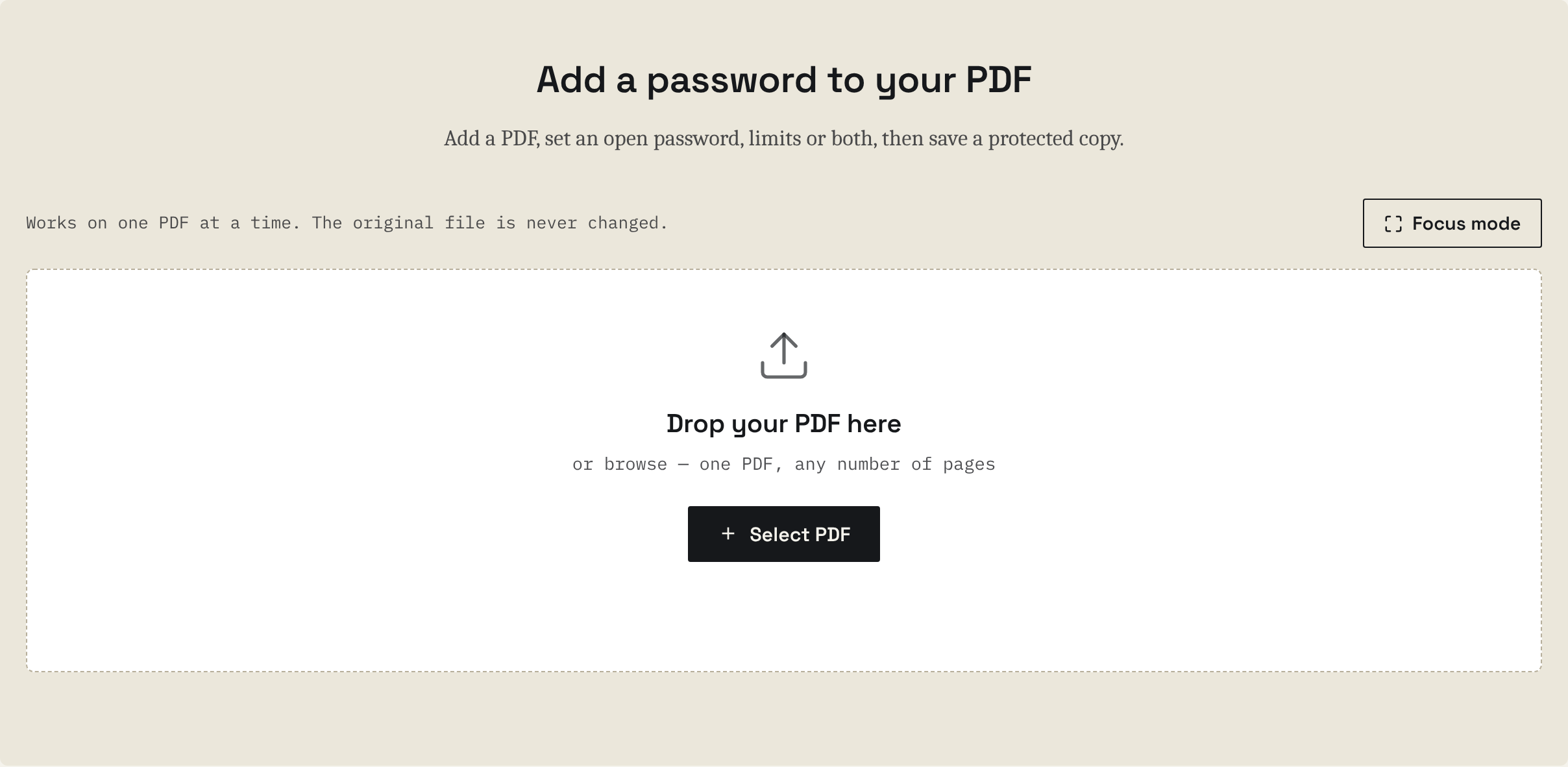
The finished tool lets you open a PDF by clicking a button or dropping the file on the page. You can type a password that will be needed to open the file (and optionally type a second password for the permissions). You can also choose whether people can print, copy text and images, or edit the file.
The tool also encrypts the PDF with AES-256, checks that the new file really asks for a password and opens it with yours, and lets you rename and download the protected copy.
Through all this, the original file is never changed, and nothing is sent to a server.
How PDF Encryption Works
Before writing our code, it helps to know what a protected PDF looks like inside. You don't need to read the specification, but these five ideas will make the rest of the article easier to follow.
1. The Content is Encrypted, the Structure Isn't
A PDF is a list of numbered objects: dictionaries, arrays, numbers, names, strings and streams (a stream is a block of data, such as the drawing instructions of a page or an image). When a PDF is protected, every string and every stream is encrypted. Numbers, names and the way objects point to each other stay readable, so a PDF reader can still find its way around the file.
2. One Random Key Encrypts Everything
The tool creates a random 256-bit file key and encrypts all strings and streams with it using AES. The password isn't the key.
3. The Password Unlocks the Key
The file stores the file key twice, encrypted with a hash of each password, plus a value that lets a reader check whether a typed password is right. These values live in an encryption dictionary, and the file's trailer points to it with /Encrypt.
4. There Are Two Passwords
- The user password (the open password) is needed to open the file.
- The owner password (the permissions password) unlocks the file and lets the owner change what's allowed.
5. Permissions Aren't a Lock
The allowed actions (print, copy, edit) are stored as bits in a number called /P. Good PDF readers obey them, but a program that ignores them can still print or copy once the file is open. The open password is what really protects the content.
PDF has used several encryption methods over the years:
| Method | Revision | Status |
|---|---|---|
| RC4 40-bit and 128-bit | R2 to R4 | Old and weak, don't use them for new files |
| AES-128 | R4 | Opens in Acrobat 7 and newer |
| AES-256 | R6 | PDF 2.0 standard, opens in Acrobat X and newer and in all current PDF apps |
This tool uses AES-256 (revision 6). It's the strongest option, and it's also the simplest to build, because every object uses the same key.
Let's go through the flow.
From the PDF file:
- PDF-lib loads the objects
- random file key (32 bytes)
- U, UE, O, OE, Perms from the passwords (SHA-2 + AES)
- every string and stream is encrypted with AES-256
- /Encrypt dictionary + /ID are added to the trailer
- the saved PDF is checked with PDF.js and then downloaded
Project Setup
The project is three files and has no build step:
pdf-protector/ ├── index.html ├── style.css └── script.js Because the Web Crypto API only works in a secure context, open the page from https:// or from http://localhost. If you open index.html with a file:// path or a plain http:// address, crypto.subtle is undefined.
The easiest way to get a local server is:
npx serve . Then open the address it prints, such as http://localhost:3000.
Libraries and Browser APIs Used
PDF-lib 1.17.1 reads the PDF into objects you can change and writes it back out. It doesn't support encryption, which is why you'll build that part.
PDF.js 3.11.174 is Mozilla's PDF reader. You'll use it to open the protected file, the same way a real reader would, and confirm that it works.
The Web Crypto API is built into every modern browser. It gives you AES encryption, SHA-256/384/512 hashes, and secure random numbers. Never use Math.random() for keys.
Both libraries load from a CDN at the end of index.html:
<script src="https://unpkg.com/pdf-lib@1.17.1/dist/pdf-lib.min.js"></script> <script src="https://cdnjs.cloudflare.com/ajax/libs/pdf.js/3.11.174/pdf.min.js"></script> <script src="script.js"></script> Creating the HTML Layout
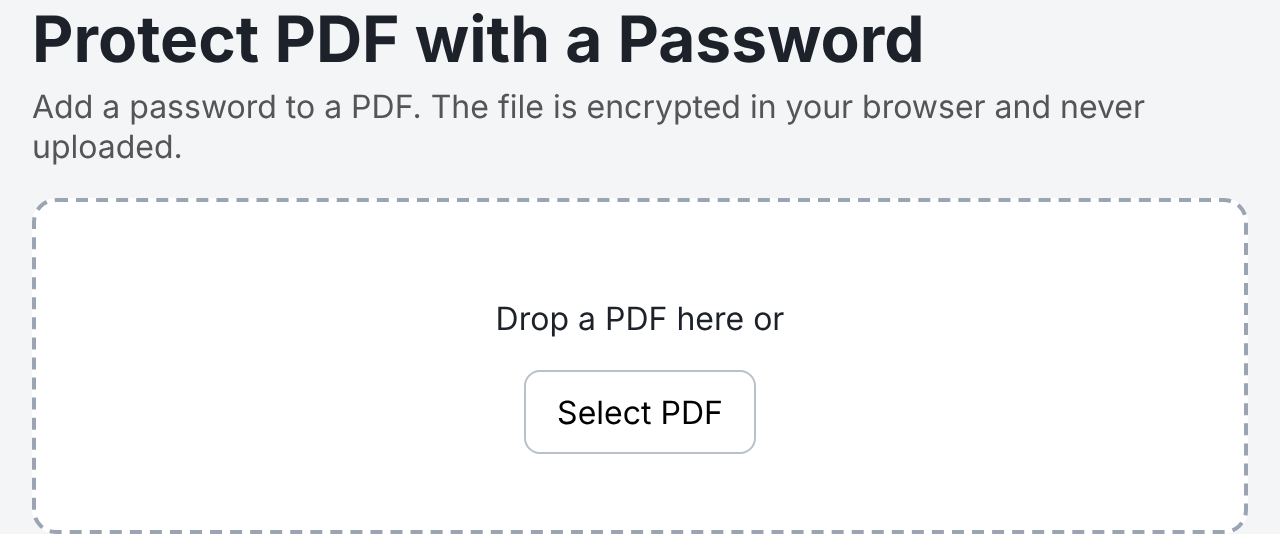
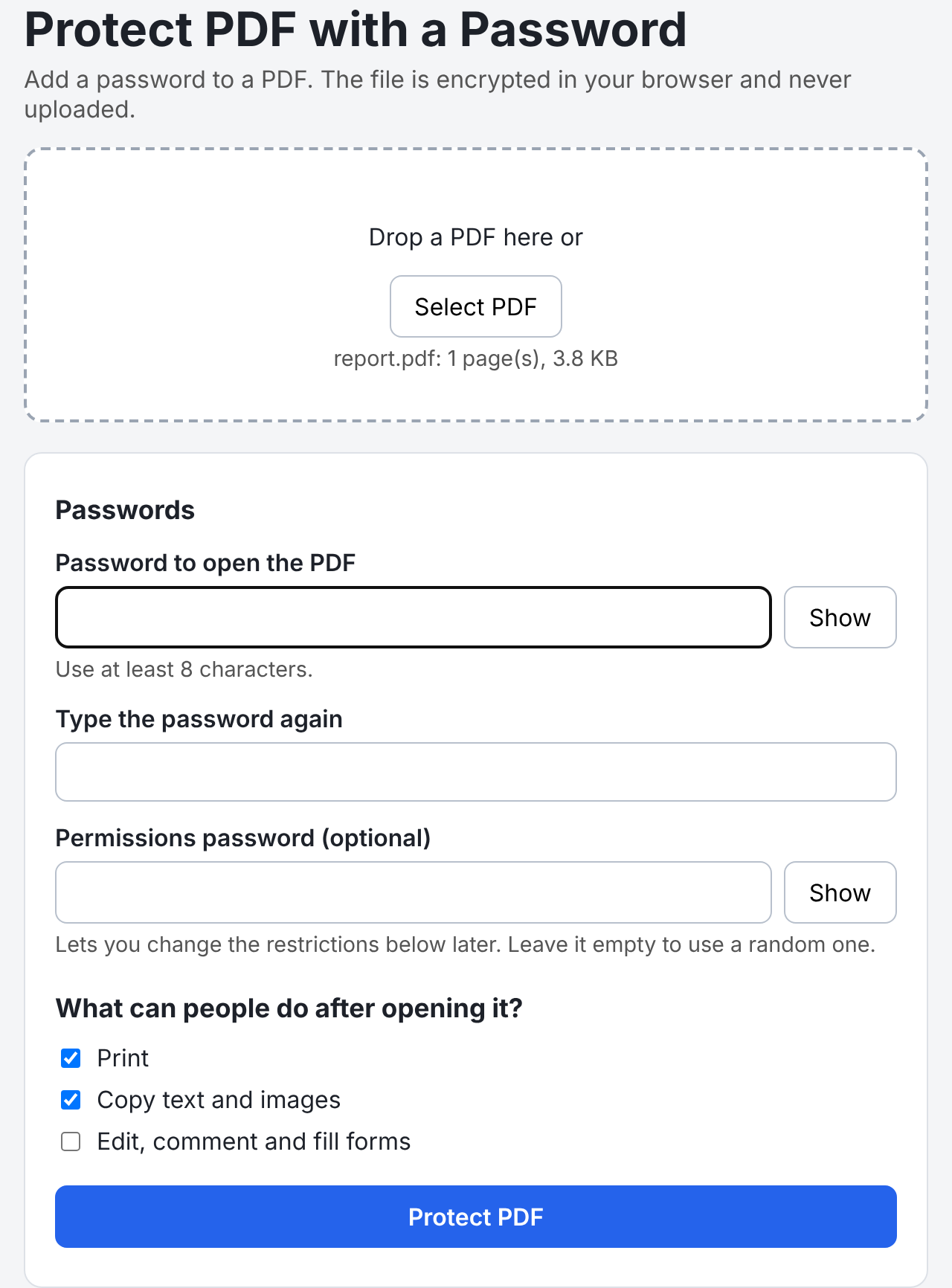
The page has three parts: an upload area, a settings panel with the passwords and permissions, and a result panel. The settings and result panels start hidden.
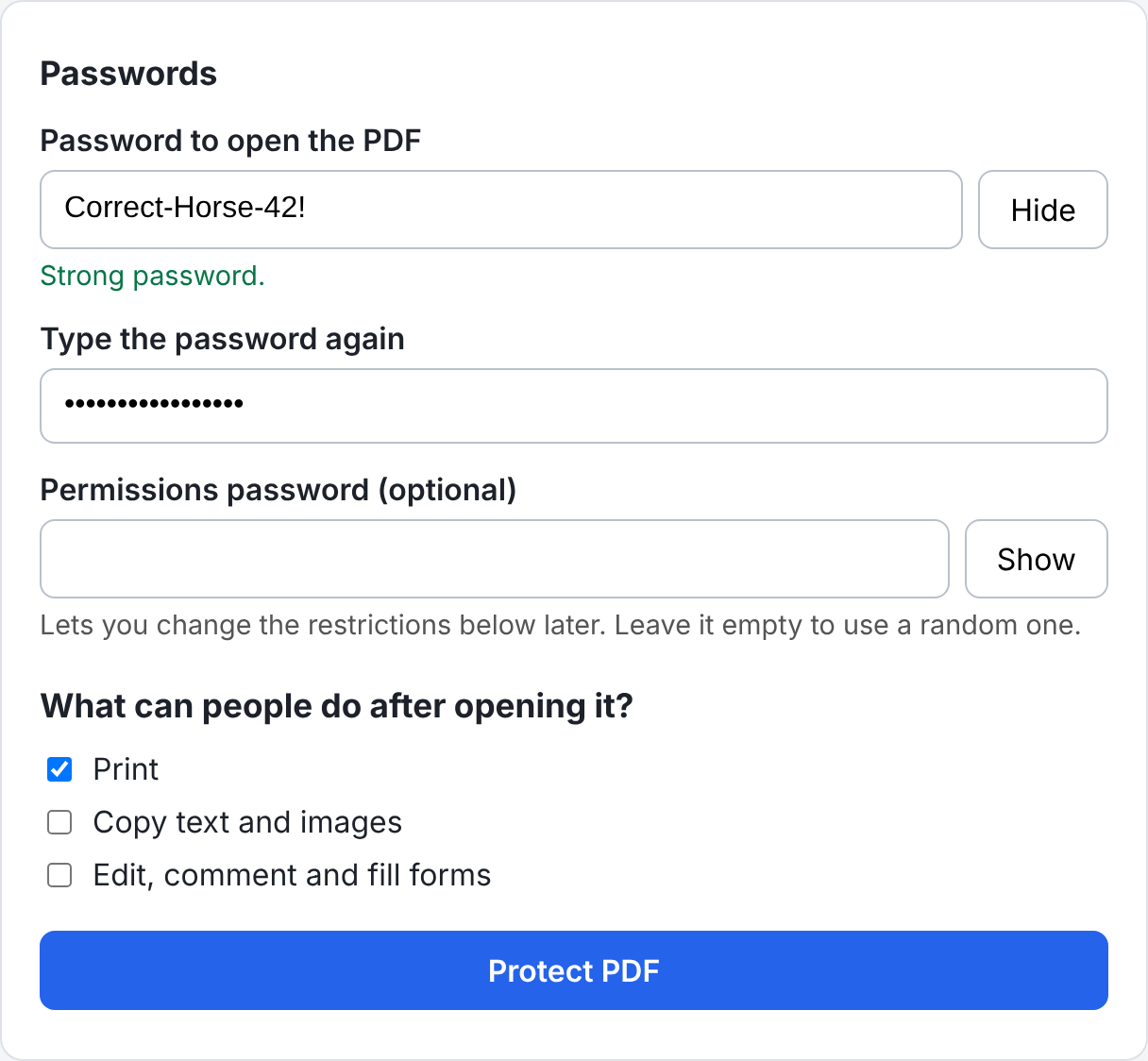
<!-- 1. Upload --> <section id="uploadArea" class="upload-area"> <p>Drop a PDF here or</p> <button type="button" id="selectBtn">Select PDF</button> <input type="file" id="fileInput" accept="application/pdf,.pdf" hidden> <p id="fileInfo" class="file-info" aria-live="polite"></p> </section> <!-- 2. Passwords --> <section id="settings" class="panel" hidden> <h2>Passwords</h2> <label for="openPw">Password to open the PDF</label> <div class="pw-row"> <input type="password" id="openPw" autocomplete="new-password"> <button type="button" class="show-btn" data-target="openPw">Show</button> </div> <p id="strength" class="hint">Use at least 8 characters.</p> <label for="openPw2">Type the password again</label> <input type="password" id="openPw2" autocomplete="new-password"> <label for="ownerPw">Permissions password (optional)</label> <div class="pw-row"> <input type="password" id="ownerPw" autocomplete="new-password"> <button type="button" class="show-btn" data-target="ownerPw">Show</button> </div> <p class="hint">Lets you change the restrictions below later. Leave it empty to use a random one.</p> <h2>What can people do after opening it?</h2> <label class="check"><input type="checkbox" id="allowPrint" checked> Print</label> <label class="check"><input type="checkbox" id="allowCopy" checked> Copy text and images</label> <label class="check"><input type="checkbox" id="allowEdit"> Edit, comment and fill forms</label> <button type="button" id="protectBtn" class="primary">Protect PDF</button> <p id="status" class="status" aria-live="polite"></p> </section> <!-- 3. Result --> <section id="result" class="panel" hidden> <h2>Your protected PDF is ready</h2> <ul id="checks" class="checks"></ul> <label for="fileName">File name</label> <input type="text" id="fileName"> <button type="button" id="downloadBtn" class="primary">Download PDF</button> </section> There are a few details worth pointing out here:
- The password inputs use
autocomplete="new-password", so the browser doesn't fill in a saved login password. - The status lines use
aria-live="polite", so screen readers announce messages such as "The two passwords are different." - The file input is hidden. A regular button opens it, which is easier to style.
The CSS is ordinary layout and colors, so it isn't covered here. You can copy it from the demo files.
Opening the PDF
First, script.js takes the classes it needs from the two libraries, points PDF.js to its worker, and keeps the app's state in one object:
// ---------- Setup ---------- const { PDFDocument, PDFName, PDFNumber, PDFBool, PDFHexString, PDFString, PDFDict, PDFArray, PDFRawStream } = PDFLib; pdfjsLib.GlobalWorkerOptions.workerSrc = 'https://cdnjs.cloudflare.com/ajax/libs/pdf.js/3.11.174/pdf.worker.min.js'; const state = { file: null, // the File the user picked bytes: null, // its contents as a Uint8Array pages: 0, result: null // the protected PDF as a Uint8Array }; const $ = (id) => document.getElementById(id); const uploadArea = $('uploadArea'); const fileInput = $('fileInput'); const fileInfo = $('fileInfo'); const settings = $('settings'); const openPw = $('openPw'); const openPw2 = $('openPw2'); const ownerPw = $('ownerPw'); const strength = $('strength'); const protectBtn = $('protectBtn'); const statusText = $('status'); const result = $('result'); const checks = $('checks'); const fileName = $('fileName'); const downloadBtn = $('downloadBtn'); The user can pick a file with the button or drop it on the upload area:
// ---------- Opening the PDF ---------- $('selectBtn').addEventListener('click', () => fileInput.click()); fileInput.addEventListener('change', () => { if (fileInput.files[0]) loadFile(fileInput.files[0]); fileInput.value = ''; }); uploadArea.addEventListener('dragover', (e) => { e.preventDefault(); uploadArea.classList.add('dragover'); }); uploadArea.addEventListener('dragleave', () => uploadArea.classList.remove('dragover')); uploadArea.addEventListener('drop', (e) => { e.preventDefault(); uploadArea.classList.remove('dragover'); if (e.dataTransfer.files[0]) loadFile(e.dataTransfer.files[0]); }); Setting fileInput.value = '' after reading the file lets the user pick the same file again.
loadFile checks that the file is a PDF, reads it into a Uint8Array, and tries to load it with PDF-lib:
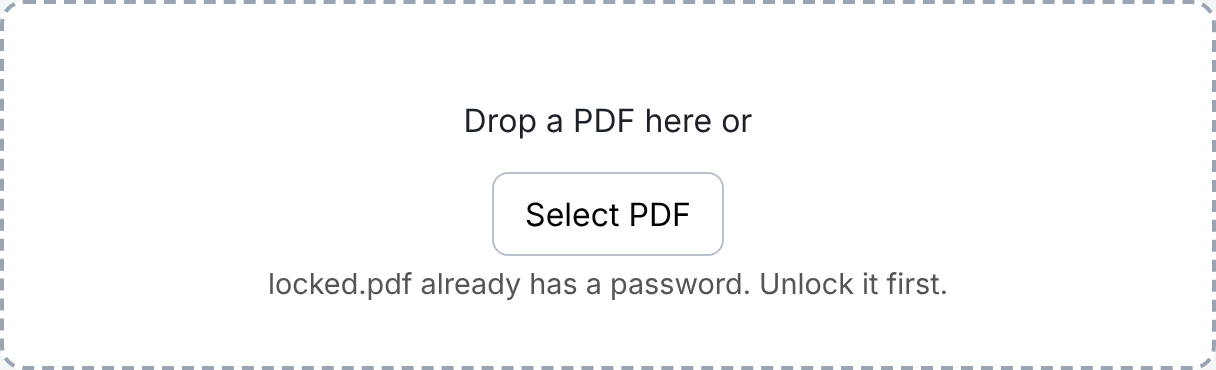
async function loadFile(file) { const isPdf = file.type === 'application/pdf' || /\.pdf$/i.test(file.name); if (!isPdf) { fileInfo.textContent = `${file.name} is not a PDF.`; return; } const bytes = new Uint8Array(await file.arrayBuffer()); try { const doc = await PDFDocument.load(bytes, { updateMetadata: false }); state.file = file; state.bytes = bytes; state.pages = doc.getPageCount(); } catch (err) { fileInfo.textContent = /encrypted/i.test(err.message) ? `${file.name} already has a password. Unlock it first.` : `${file.name} could not be read. The file may be damaged.`; return; } fileInfo.textContent = `${file.name}: ${state.pages} page(s), ${formatSize(file.size)}`; settings.hidden = false; result.hidden = true; openPw.focus(); } function formatSize(n) { if (n < 1024) return n + ' B'; if (n < 1024 * 1024) return (n / 1024).toFixed(1) + ' KB'; return (n / 1024 / 1024).toFixed(1) + ' MB'; } Loading the file here does two jobs. It counts the pages, which you'll use later to check the result, and it catches files that already have a password: PDF-lib throws an error whose message contains "encrypted" when it sees one, so the tool can tell the user to unlock the file first.
The updateMetadata: false option is important here. By default, PDF-lib changes the file's Producer and modification date when it loads a document. You only want to add a password, not rewrite the document's details.
Handling the Password Fields
Each Show button switches its input between password and text, so the user can check what they typed:
// ---------- Password fields ---------- document.querySelectorAll('.show-btn').forEach((btn) => { btn.addEventListener('click', () => { const input = $(btn.dataset.target); const show = input.type === 'password'; input.type = show ? 'text' : 'password'; btn.textContent = show ? 'Hide' : 'Show'; }); }); While the user types, a short hint rates the password. It counts how many kinds of characters it contains (lowercase, uppercase, digits, and symbols):
openPw.addEventListener('input', () => { const pw = openPw.value; const kinds = [/[a-z]/, /[A-Z]/, /[0-9]/, /[^A-Za-z0-9]/] .filter((re) => re.test(pw)).length; if (pw.length < 8) { strength.textContent = 'Use at least 8 characters.'; strength.className = 'hint weak'; } else if (pw.length >= 12 && kinds >= 3) { strength.textContent = 'Strong password.'; strength.className = 'hint good'; } else { strength.textContent = 'OK. A longer password with numbers and symbols is stronger.'; strength.className = 'hint'; } }); This isn't a real strength meter, and it doesn't need to be one. Its job is to push people away from passwords like 1234.
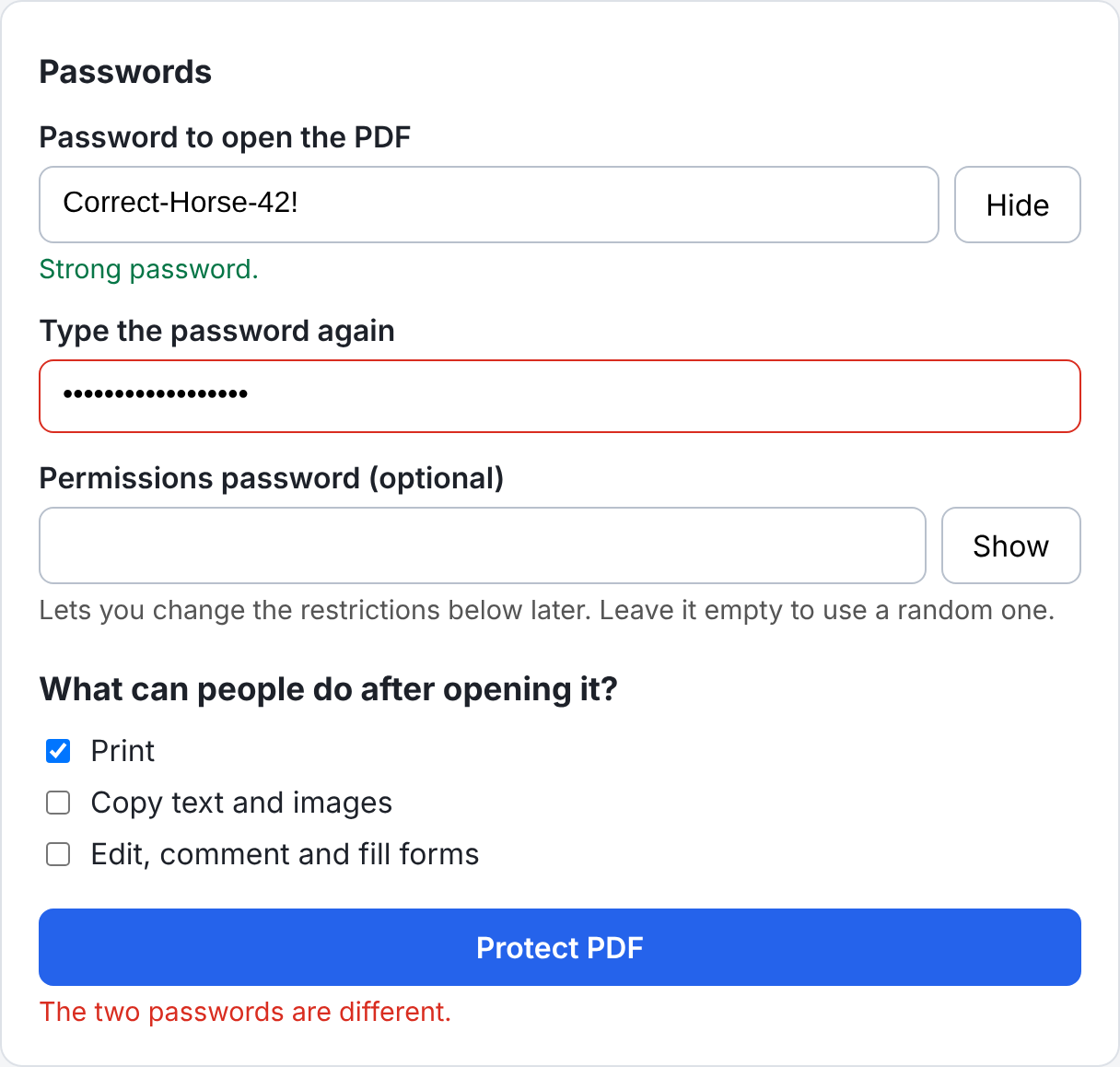
Before encrypting, passwordProblem returns a message if something is wrong, or an empty string if everything is fine:
function passwordProblem() { if (openPw.value.length < 8) return 'The password must have at least 8 characters.'; if (openPw.value !== openPw2.value) return 'The two passwords are different.'; if (ownerPw.value && ownerPw.value === openPw.value) { return 'Use a different permissions password, or leave it empty.'; } return ''; } The last rule is there because if both passwords are the same, the permissions are pointless: anyone who can open the file can also change them.
Helpers for Bytes and Web Crypto
Encryption works on bytes, so you need a few small helpers. concat joins byte arrays, randomBytes gets secure random bytes, and toHex turns bytes into a hex string for PDF-lib:
// ---------- Byte helpers ---------- function concat(...parts) { const out = new Uint8Array(parts.reduce((n, p) => n + p.length, 0)); let offset = 0; for (const p of parts) { out.set(p, offset); offset += p.length; } return out; } const randomBytes = (n) => crypto.getRandomValues(new Uint8Array(n)); function toHex(bytes) { return Array.from(bytes, (b) => b.toString(16).padStart(2, '0')).join(''); } // PDF 2.0 passwords are UTF-8, normalized, and at most 127 bytes long function passwordBytes(text) { return new TextEncoder().encode(text.normalize('NFKC')).slice(0, 127); } passwordBytes prepares a password the way PDF 2.0 expects: as UTF-8, at most 127 bytes long. The normalize('NFKC') call makes sure that characters which look the same are stored the same way, so for example é typed on two different keyboards gives the same bytes. The specification uses a slightly stricter process called SASLprep, but NFKC covers the cases people actually come across.
Next come the Web Crypto helpers:
// ---------- Web Crypto helpers ---------- async function digest(algorithm, data) { return new Uint8Array(await crypto.subtle.digest(algorithm, data)); } // AES-CBC with PKCS#7 padding (what PDF uses for strings and streams) async function aesEncrypt(keyBytes, iv, data) { const key = await crypto.subtle.importKey('raw', keyBytes, 'AES-CBC', false, ['encrypt']); return new Uint8Array(await crypto.subtle.encrypt({ name: 'AES-CBC', iv }, key, data)); } // AES-CBC without padding: the input is already a multiple of 16 bytes, // so we keep the first data.length bytes and drop the extra padding block async function aesEncryptNoPad(keyBytes, iv, data) { return (await aesEncrypt(keyBytes, iv, data)).slice(0, data.length); } Web Crypto's AES-CBC always adds PKCS#7 padding. PDF needs padding for strings and streams, so aesEncrypt is perfect for them. But a few values in the encryption dictionary must be encrypted without padding. Their input is always a multiple of 16 bytes, so the first data.length bytes of the output are exactly what you need, and aesEncryptNoPad simply drops the extra padding block.
Hashing the Password the PDF 2.0 Way
AES-256 PDFs don't use a plain SHA-256 of the password. They use a slower hash (Algorithm 2.B in ISO 32000-2) that makes guessing passwords expensive:
// ---------- The PDF 2.0 password hash ---------- // ISO 32000-2, Algorithm 2.B: SHA-256, then at least 64 rounds of // AES-128 + SHA-256/384/512 to make guessing passwords slow async function hashPassword(password, salt, userKey) { let k = await digest('SHA-256', concat(password, salt, userKey)); let e = new Uint8Array([0]); let round = 0; while (round < 64 || e[e.length - 1] > round - 32) { const block = concat(password, k, userKey); const k1 = new Uint8Array(block.length * 64); for (let i = 0; i < 64; i++) k1.set(block, i * block.length); e = await aesEncryptNoPad(k.slice(0, 16), k.slice(16, 32), k1); let sum = 0; for (let i = 0; i < 16; i++) sum += e[i]; const hash = ['SHA-256', 'SHA-384', 'SHA-512'][sum % 3]; k = await digest(hash, e); round++; } return k.slice(0, 32); } Here's what happens:
- Start with a SHA-256 hash of the password, a salt, and (for the owner password) the 48-byte
Uvalue. - Repeat the password, the current hash, and the extra data 64 times, and encrypt that block with AES-128. The key and IV come from the current hash.
- Add up the first 16 bytes of the result. The remainder after dividing by 3 decides whether the next hash is SHA-256, SHA-384, or SHA-512.
- Do this at least 64 times, then keep going until the last byte of the encrypted block is no bigger than the round number minus 32.
- The first 32 bytes of the final hash are the result.
Because the number of rounds and the hash function depend on the data, an attacker can't easily speed this up with special hardware. A browser still finishes it in a few milliseconds.
Turning Permissions into a Number
The permissions are stored in /P as a 32-bit number, where each bit allows one action:
// ---------- Permissions ---------- // Bit positions from the PDF specification (bit 1 is the lowest bit) const PERM = { print: 1 << 2, // bit 3 modify: 1 << 3, // bit 4 copy: 1 << 4, // bit 5 annotate: 1 << 5, // bit 6 fillForms: 1 << 8, // bit 9 accessibility: 1 << 9, // bit 10 assemble: 1 << 10, // bit 11 printHigh: 1 << 11 // bit 12 }; function permissionFlags({ print, copy, edit }) { let p = 0xFFFFF0C0; // reserved bits that must be 1 p |= PERM.accessibility; // always allow screen readers if (print) p |= PERM.print | PERM.printHigh; if (copy) p |= PERM.copy; if (edit) p |= PERM.modify | PERM.annotate | PERM.fillForms | PERM.assemble; return p | 0; // as a signed 32-bit number } The starting value 0xFFFFF0C0 sets the bits that the specification says must always be 1. The function then turns on bit 10 (text extraction for accessibility) so screen readers keep working, and adds the bits for each option the user ticked:
| Option in the tool | Bits turned on |
|---|---|
| 3 (print) and 12 (high-quality print) | |
| Copy text and images | 5 |
| Edit, comment, and fill forms | 4, 6, 9 and 11 |
The final p | 0 converts the number to a signed 32-bit integer. With high bits set, it's negative, and that's normal: most PDFs show something like /P -1324.
Building the Encryption Keys
Now you can build the values that go into the encryption dictionary:
// ---------- Building the encryption dictionary values ---------- async function makeKeys(userText, ownerText, p) { const fileKey = randomBytes(32); // the key that encrypts the document const user = passwordBytes(userText); const owner = passwordBytes(ownerText); const none = new Uint8Array(0); const zeroIv = new Uint8Array(16); // U and UE: check the open password and unlock the file key with it const uValidation = randomBytes(8); const uKeySalt = randomBytes(8); const U = concat(await hashPassword(user, uValidation, none), uValidation, uKeySalt); const UE = await aesEncryptNoPad(await hashPassword(user, uKeySalt, none), zeroIv, fileKey); // O and OE: the same for the permissions password (they also depend on U) const oValidation = randomBytes(8); const oKeySalt = randomBytes(8); const O = concat(await hashPassword(owner, oValidation, U), oValidation, oKeySalt); const OE = await aesEncryptNoPad(await hashPassword(owner, oKeySalt, U), zeroIv, fileKey); // Perms: the permissions, encrypted with the file key so they can't be edited const perms = new Uint8Array(16); new DataView(perms.buffer).setInt32(0, p, true); // little-endian perms.set([0xFF, 0xFF, 0xFF, 0xFF], 4); perms.set([0x54, 0x61, 0x64, 0x62], 8); // 'T' (encrypt metadata), 'a', 'd', 'b' perms.set(randomBytes(4), 12); const Perms = await aesEncryptNoPad(fileKey, zeroIv, perms); return { fileKey, U, UE, O, OE, Perms }; } Let's go through them:
fileKeyis 32 random bytes. It encrypts the whole document.U(48 bytes) lets a reader check the user password. It's the password hash plus two 8-byte random salts: a validation salt used to check the password, and a key salt used to unlock the key.UEis the file key, encrypted with a hash of the user password and the key salt. When someone types the right password, the reader rebuilds this hash and decrypts the file key.OandOEdo the same for the owner password. Their hashes also includeU, which ties the two passwords to the same file.Permsis the permission number plus a few check bytes, encrypted with the file key. A reader decrypts it and compares it with/P, so someone who edits/Pin a text editor gets caught.
Two rules from the specification show up here:
UE,OEandPermsare encrypted without padding and with an IV of zeros. (Permsis a single 16-byte block, so AES-CBC with a zero IV gives the same result as the AES-ECB mode the specification describes.)- The byte
TinPermsmeans "the metadata is encrypted too", which must match/EncryptMetadata truein the dictionary.
Encrypting Every String and Stream
With the file key ready, you can encrypt the document. For AES-256, each string or stream is encrypted with the file key and a new random 16-byte IV, and the IV is stored in front of the encrypted bytes:
// ---------- Encrypting the objects ---------- // With AES-256 every string and stream is encrypted with the file key // and a fresh random IV, which is stored in front of the encrypted data async function encryptData(fileKey, data) { const iv = randomBytes(16); return concat(iv, await aesEncrypt(fileKey, iv, data)); } async function encryptStrings(value, fileKey) { if (value instanceof PDFDict) { for (const [key, item] of value.entries()) { const replacement = await encryptValue(item, fileKey); if (replacement) value.set(key, replacement); } } else if (value instanceof PDFArray) { for (let i = 0; i < value.size(); i++) { const replacement = await encryptValue(value.get(i), fileKey); if (replacement) value.set(i, replacement); } } } async function encryptValue(item, fileKey) { if (item instanceof PDFString || item instanceof PDFHexString) { return PDFHexString.of(toHex(await encryptData(fileKey, item.asBytes()))); } await encryptStrings(item, fileKey); // nested dictionaries and arrays return null; } async function encryptObjects(context, fileKey) { const objects = context.enumerateIndirectObjects(); for (const [ref, object] of objects) { if (object instanceof PDFRawStream) { const type = object.dict.get(PDFName.of('Type')); if (type === PDFName.of('XRef')) { // old cross-reference streams context.delete(ref); continue; } await encryptStrings(object.dict, fileKey); const data = await encryptData(fileKey, object.contents); context.assign(ref, PDFRawStream.of(object.dict, data)); } else { await encryptStrings(object, fileKey); } } } encryptObjects goes through every object in the file:
- Streams (
PDFRawStream): their data is replaced with the encrypted version. PDF-lib updates the/Lengthentry for you when it saves. - Dictionaries and arrays:
encryptStringswalks through them and replaces every string with an encrypted hex string. Nested dictionaries and arrays are handled by calling the function again. - Cross-reference streams (
/Type /XRef) are deleted. They describe where objects sit in the old file, PDF-lib writes a new cross-reference table anyway, and they must never be encrypted.
PDF-lib has two string types: PDFString for literal strings like (Hello) and PDFHexString for hex strings like <48656C6C6F>. Both have an asBytes() method that returns the real bytes, which is what you encrypt.
The stream data is encrypted as it is in the file, which is usually already compressed. That's the correct order: a reader decrypts first, then decompresses.
Writing the Protected PDF
protectPdf puts it all together:
// ---------- Protecting the PDF ---------- async function protectPdf(bytes, options) { const doc = await PDFDocument.load(bytes, { updateMetadata: false }); const context = doc.context; const p = permissionFlags(options); const ownerText = options.ownerPw || toHex(randomBytes(16)); const keys = await makeKeys(options.openPw, ownerText, p); // 1. Encrypt every string and stream that is already in the file await encryptObjects(context, keys.fileKey); // 2. Add the encryption dictionary (it must NOT be encrypted itself) const hex = (b) => PDFHexString.of(toHex(b)); const stdCF = context.obj({ AuthEvent: 'DocOpen', CFM: 'AESV3', Length: 32 }); const encrypt = context.obj({ Filter: 'Standard', V: 5, R: 6, Length: 256, CF: context.obj({ StdCF: stdCF }), StmF: 'StdCF', StrF: 'StdCF', P: PDFNumber.of(p), EncryptMetadata: PDFBool.True }); encrypt.set(PDFName.of('U'), hex(keys.U)); encrypt.set(PDFName.of('UE'), hex(keys.UE)); encrypt.set(PDFName.of('O'), hex(keys.O)); encrypt.set(PDFName.of('OE'), hex(keys.OE)); encrypt.set(PDFName.of('Perms'), hex(keys.Perms)); // 3. Point the trailer at it and give the file an ID context.trailerInfo.Encrypt = context.register(encrypt); const id = hex(randomBytes(16)); context.trailerInfo.ID = context.obj([id, id]); // Object streams would hide objects from step 1, so write plain objects return doc.save({ useObjectStreams: false }); } The steps are:
- Encrypt the existing objects: This must happen before you add the encryption dictionary, because the dictionary itself must stay readable.
- Create the encryption dictionary:
context.obj()turns plain strings into PDF names, soFilter: 'Standard'becomes/Filter /Standard.V 5andR 6mean AES-256 from PDF 2.0, and the crypt filterStdCFwithCFM AESV3tells the reader to use AES-256 for both streams (StmF) and strings (StrF). - Update the trailer: The trailer gets an
/Encryptreference and a new/ID. PDF-lib writestrailerInfointo the trailer for you, and it doesn't encrypt the ID.
If the user leaves the permissions password empty, the tool uses 16 random bytes as the owner password. Nobody knows it, so nobody can lift the restrictions. (If you used an empty owner password instead, any PDF program could remove them.)
Finally, the file is saved with useObjectStreams: false. An object stream packs many objects into one compressed stream. Strings inside an object stream must not be encrypted on their own, because the whole stream is encrypted. You already encrypted every string individually, so writing plain objects keeps the file correct.
Here's what the encryption dictionary looks like in the saved file:
<< /Filter /Standard /V 5 /R 6 /Length 256 /CF << /StdCF << /AuthEvent /DocOpen /CFM /AESV3 /Length 32 >> >> /StmF /StdCF /StrF /StdCF /P -1324 /EncryptMetadata true /U <...48 bytes...> /UE <...32 bytes...> /O <...48 bytes...> /OE <...32 bytes...> /Perms <...16 bytes...> >> Checking the Result with PDF.js
Encryption bugs are easy to make and hard to notice. A file might open in one reader and fail in another, or it might not be encrypted at all. So the tool opens its own output with PDF.js before offering the download:
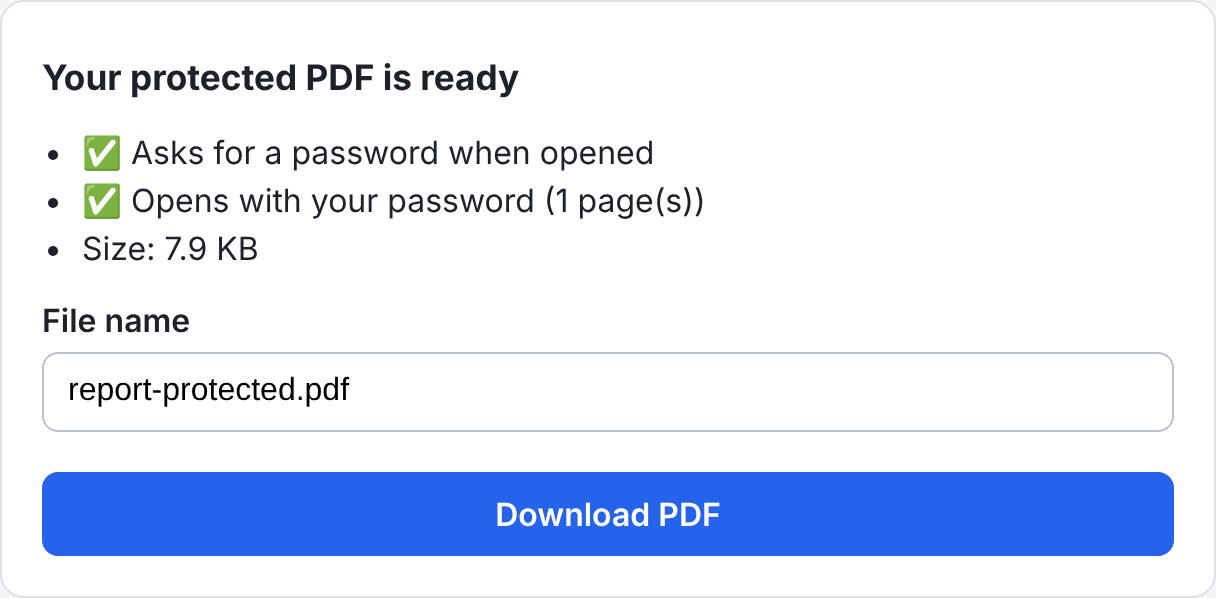
// ---------- Checking the result with PDF.js ---------- async function verify(bytes, password) { const results = []; // 1. Without a password, PDF.js must ask for one try { const doc = await pdfjsLib.getDocument({ data: bytes.slice() }).promise; await doc.destroy(); results.push([false, 'The file opened without a password']); } catch (err) { results.push([err.name === 'PasswordException', 'Asks for a password when opened']); } // 2. With the password, it must open and have every page try { const doc = await pdfjsLib.getDocument({ data: bytes.slice(), password }).promise; results.push([doc.numPages === state.pages, `Opens with your password (${doc.numPages} page(s))`]); await doc.destroy(); } catch (err) { results.push([false, 'Could not open it with your password']); } return results; } There are two checks:
- Opening the file without a password must fail with a
PasswordException. If it opens, the file isn't protected. - Opening it with the password must work, and it must have the same number of pages as the original.
bytes.slice() passes a copy, because PDF.js moves the buffer to its worker and the original array would become empty.
Connecting the Button
The click handler checks the passwords, runs protectPdf, runs the checks, and shows the result:
// ---------- Running everything ---------- protectBtn.addEventListener('click', async () => { const problem = passwordProblem(); openPw.setAttribute('aria-invalid', String(openPw.value.length < 8)); openPw2.setAttribute('aria-invalid', String(openPw.value !== openPw2.value)); if (problem) { statusText.textContent = problem; statusText.className = 'status error'; return; } protectBtn.disabled = true; statusText.className = 'status'; statusText.textContent = 'Encrypting…'; try { const options = { openPw: openPw.value, ownerPw: ownerPw.value, print: $('allowPrint').checked, copy: $('allowCopy').checked, edit: $('allowEdit').checked }; state.result = await protectPdf(state.bytes, options); statusText.textContent = 'Checking the protected file…'; const results = await verify(state.result, options.openPw); checks.innerHTML = ''; for (const [ok, text] of results) { const li = document.createElement('li'); li.textContent = (ok ? '✅ ' : '❌ ') + text; checks.appendChild(li); } const sizeLi = document.createElement('li'); sizeLi.textContent = 'Size: ' + formatSize(state.result.length); checks.appendChild(sizeLi); fileName.value = state.file.name.replace(/\.pdf$/i, '') + '-protected.pdf'; statusText.textContent = ''; result.hidden = false; result.scrollIntoView({ behavior: 'smooth' }); } catch (err) { console.error(err); statusText.textContent = 'Something went wrong: ' + err.message; statusText.className = 'status error'; } finally { protectBtn.disabled = false; } }); The button is disabled while the work runs, so a double click doesn't start two encryptions. The finally block turns it back on, even if something fails.
Renaming and Downloading
The result panel suggests a name such as report-protected.pdf. When the user clicks Download PDF, the name is cleaned and the file is saved:
// ---------- Downloading ---------- downloadBtn.addEventListener('click', () => { let name = fileName.value.trim().replace(/[\\/:*?"<>|]+/g, '-') || 'protected.pdf'; if (!/\.pdf$/i.test(name)) name += '.pdf'; const blob = new Blob([state.result], { type: 'application/pdf' }); const url = URL.createObjectURL(blob); const a = document.createElement('a'); a.href = url; a.download = name; a.click(); setTimeout(() => URL.revokeObjectURL(url), 60000); }); The regular expression replaces characters that Windows doesn't allow in file names. The object URL is released after a minute, which gives the browser plenty of time to start the download.
Testing the File Outside the Browser
A PDF that only opens in your own tool isn't very useful. So you'll want to test the output in other software too.
qpdf is a free command-line tool that reads encrypted PDFs strictly. These commands check the file and show its encryption settings:
# Should say: "invalid password" qpdf --check report-protected.pdf # Should say: "No syntax or stream encoding errors found" qpdf --check --password='your password' report-protected.pdf # Shows R = 6, AESv3 and each permission qpdf --show-encryption --password='your password' report-protected.pdf For the version in this article, qpdf --show-encryption prints:
R = 6 P = -1324 User password = Correct-Horse-42 Supplied password is user password extract for accessibility: allowed extract for any purpose: allowed print low resolution: allowed print high resolution: allowed modify document assembly: not allowed modify forms: not allowed modify annotations: not allowed modify other: not allowed modify anything: not allowed stream encryption method: AESv3 string encryption method: AESv3 file encryption method: AESv3 Also open the file in your browser's PDF viewer and in Adobe Acrobat Reader. Both should ask for the password, and Acrobat's Document Properties > Security tab should show the restrictions you chose.
Demo: How the Protect PDF Tool Works
Here's the workflow in the full tool on All In One Tools.
Step 1: Add Your PDF
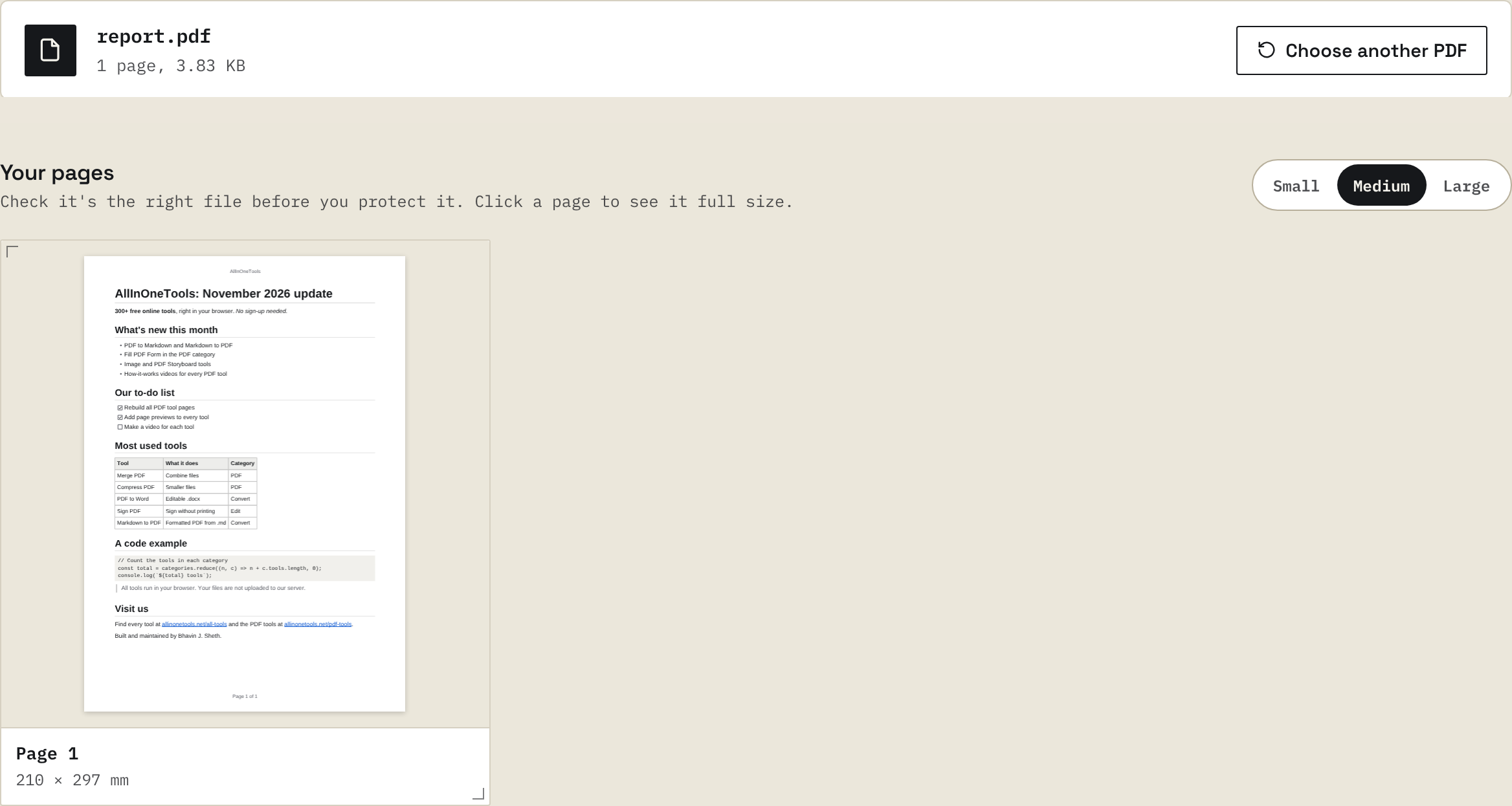
Drop a PDF on the page or click Select PDF. The pages appear as previews, so you can check that it's the right file before you protect it.
Step 2: Choose the Passwords and Limits
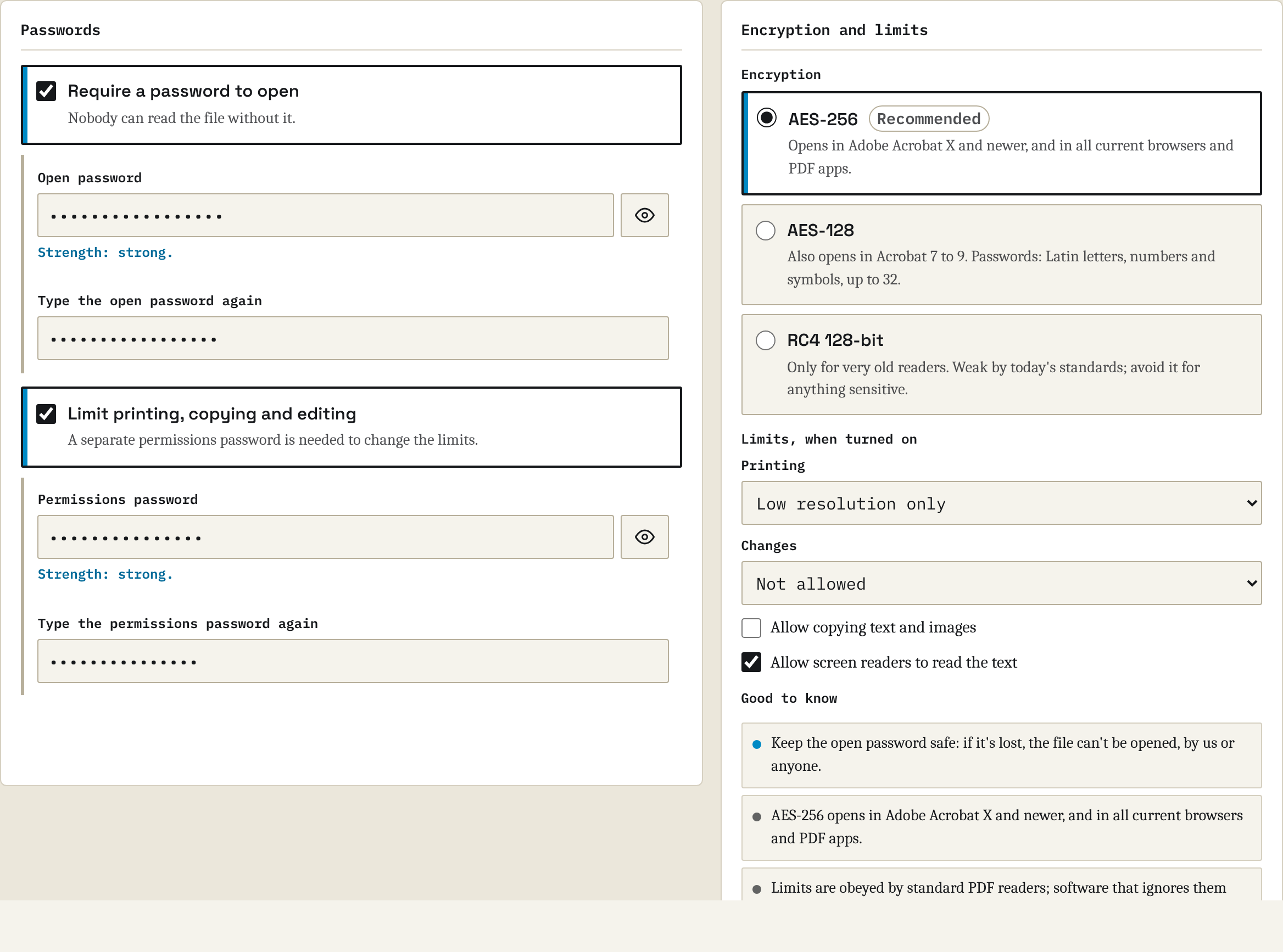
Type the open password twice. If you want to limit printing, copying or editing, turn on the limits and set a separate permissions password. AES-256 is selected by default.
Step 3: Check and Download
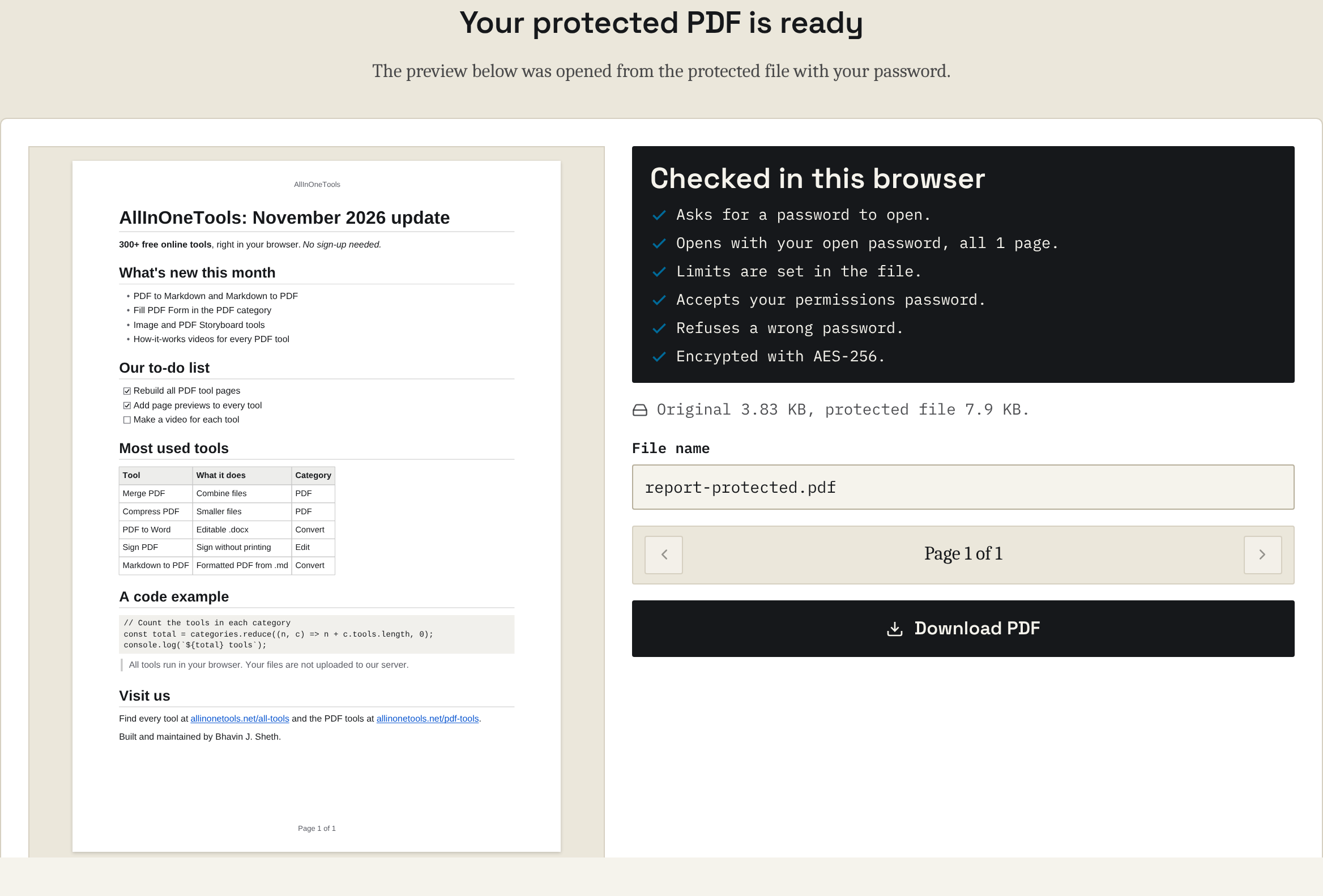
The tool opens the protected file in the browser, checks that it asks for a password, accepts yours and refuses a wrong one, and then shows a preview. Rename the file if you like and click Download PDF.
Performance Tips
There are a few things you can do to make sure the tool performs well.
First, process objects one at a time. The code awaits each encryption in turn. That keeps memory use low, because only one stream is copied at a time. For files with thousands of small objects you can encrypt in batches of, say, 50 with Promise.all to go faster.
Second, expect the file to grow a little. Each string and stream gains a 16-byte IV and up to 16 bytes of padding, and saving without object streams makes the cross-reference table bigger. A 4 KB file might become 8 KB, while a 5 MB file grows by only a few kilobytes.
Next, don't encrypt twice for the check. The tool verifies the exact bytes it's going to download. Don't run protectPdf again for the download, or the file will get a new random key and the check will no longer apply to it.
Finally, release memory after big files. Call doc.destroy() on PDF.js documents when you're done, as verify does. Otherwise the worker keeps the parsed file in memory.
Common Mistakes
There are also a few things to avoid when you're building this tool.
First, don't open the page over plain http://. crypto.subtle only exists in secure contexts. On http://example.com or a file:// path, the code fails with "Cannot read properties of undefined (reading 'digest')". Use https:// or localhost.
Don't use Math.random() for keys or salts. It isn't designed for security, and its output can be predicted. Always use crypto.getRandomValues().
You also shouldn't encrypt the encryption dictionary. If the /U, /O or /Perms strings get encrypted, no reader can check a password. Encrypt the document first, then add the dictionary.
Avoid saving with object streams. PDF-lib saves with object streams by default. With encryption, strings inside them would be encrypted twice. Pass useObjectStreams: false.
Also, don't forget slice() when passing bytes to PDF.js. PDF.js transfers the buffer to its worker. Afterwards your original Uint8Array is empty, and the download is a 0-byte file.
Don't treat permissions as security. Restricting printing and copying is useful for honest readers, but it isn't protection. If the content must stay private, the open password is what matters.
Don't protect a digitally signed PDF. Encrypting changes every byte that the signature covers, so the signature becomes invalid. Add the password first, then sign the protected file.
And finally, make sure you and your users don't lose the password. With AES-256 there's no back door and no "forgot password" button. Tell your users to store the password somewhere safe.
Conclusion
In this tutorial, you built a browser-based tool that adds a password to a PDF with AES-256 encryption.
You learned how PDF encryption is organized, how to hash a password with the PDF 2.0 algorithm, how to build the U, UE, O, OE and Perms values with the Web Crypto API, how to encrypt every string and stream with PDF-lib, and how to check the result with PDF.js and qpdf.
All of it runs in the browser, so the document stays on the user's device.
You can try the full version of this tool, with page previews, AES-128 and RC4 options for very old readers, low-resolution-only printing, and more detailed permission choices at Protect PDF.
If you want to extend your version, here are some ideas:
- Add an Unlock tool that removes the password when the user knows it
- Let users choose "print in low resolution only" (bit 3 without bit 12)
- Protect several PDFs with the same password in one go
- Show a warning when the PDF has a digital signature


