Amazon Cognito helps you implement secure sign-in and access control for users, microservices, and AI agents in minutes. Many of you rely on it for some of the most critical data you operate: the identities and attributes your applications use to authenticate and authorize every request. Recently, we launched point-in-time recovery (PITR) for Amazon Cognito user pools, which lets you restore a user pool to an earlier point in time if an accidental deletion, a faulty migration, or an erroneous bulk operation changes data you need. It’s turned on automatically for user pools on the eligible feature plans.
Before this launch, protecting user pool data meant building your own solution, such as exporting user attributes and group data on a schedule. That approach was time-consuming to build and operate, versioning the exports to find a clean point in time was another challenge, and reconstructing a pool from them was complicated. Users also got new sub identifiers as part of the restore process, which might break any downstream reference to the originals. Passwords, multi-factor authentication (MFA) settings, and passkeys might not be recovered, so every affected user had to reset.
In this post, we show you how to recover a user pool after an erroneous bulk operation, using the preview to review changes before you approve them.
How PITR works
On eligible user pools (see Prerequisites), Amazon Cognito now tracks changes so you can recover the pool to any point within the recovery window. The length of that window depends on your user pool feature plan. The window accrues from the time the pool is on an eligible feature plan, and you can only recover to a point at which PITR coverage already existed.
One behavior to understand is what happens to passwords during a recovery. A recovery restores passwords for users it recreates. A user who still exists and changed their password after the target time keeps the same password. The recovery doesn’t revert password changes, so users who legitimately changed their credentials don’t lose them.
A recovery is preview-based and has three steps:
- Initiate a recovery to a target point in time (
InitiatePointInTimeRecovery). Amazon Cognito pauses write operations to the user pool and generates a preview for your review before any changes are applied. Read operations and sign-in continue to work normally. The call returns aRestoreId. - Review the recovery preview (
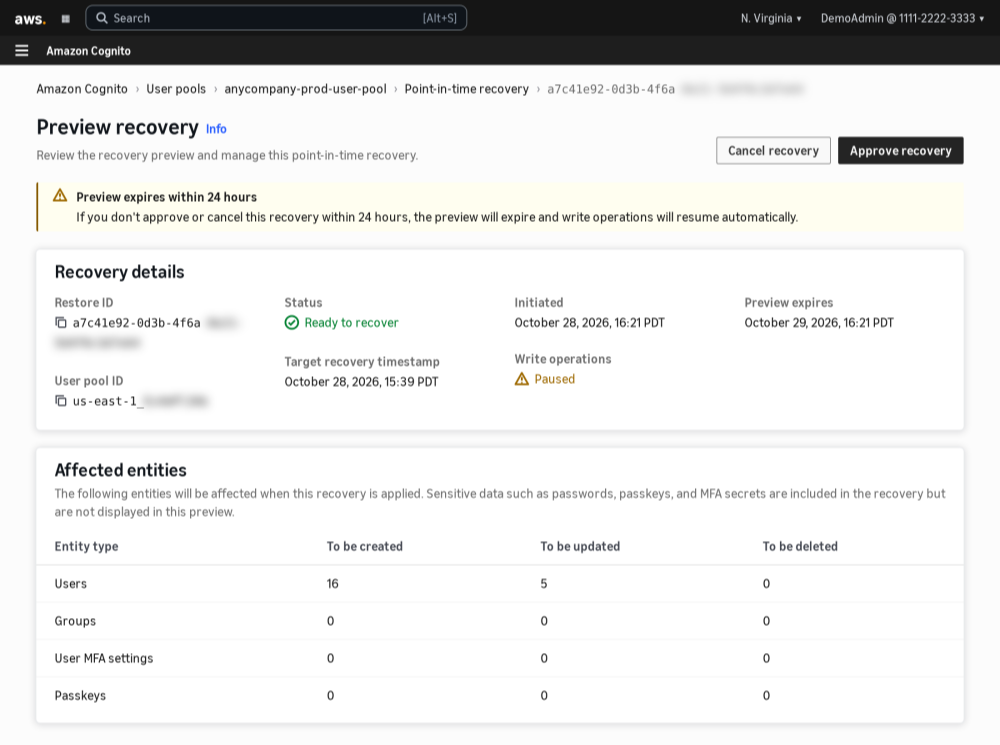
DescribePointInTimeRecovery). Amazon Cognito reports how many users, groups, MFA settings, and passkeys the recovery would create, update, or delete to return the pool to its state at the target time. - Approve or cancel. If the preview looks right, you approve the recovery with
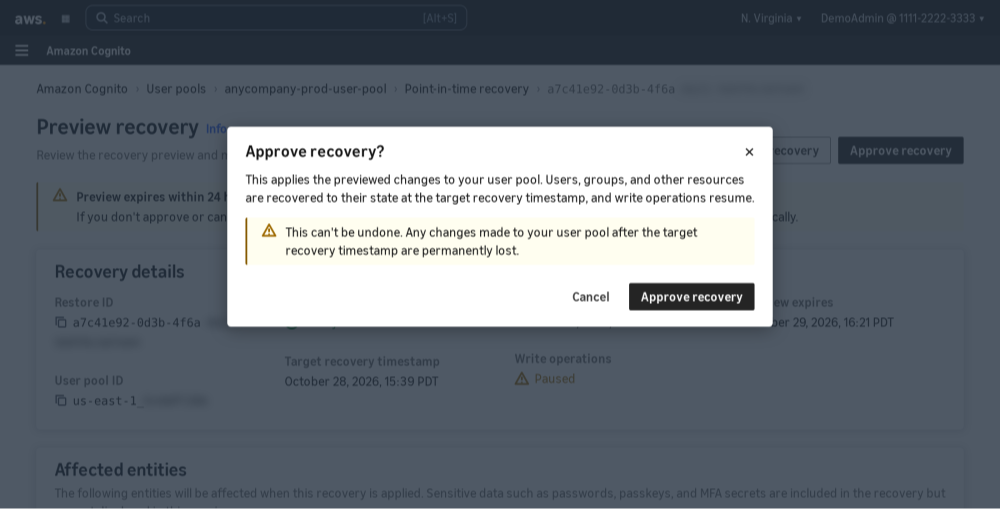
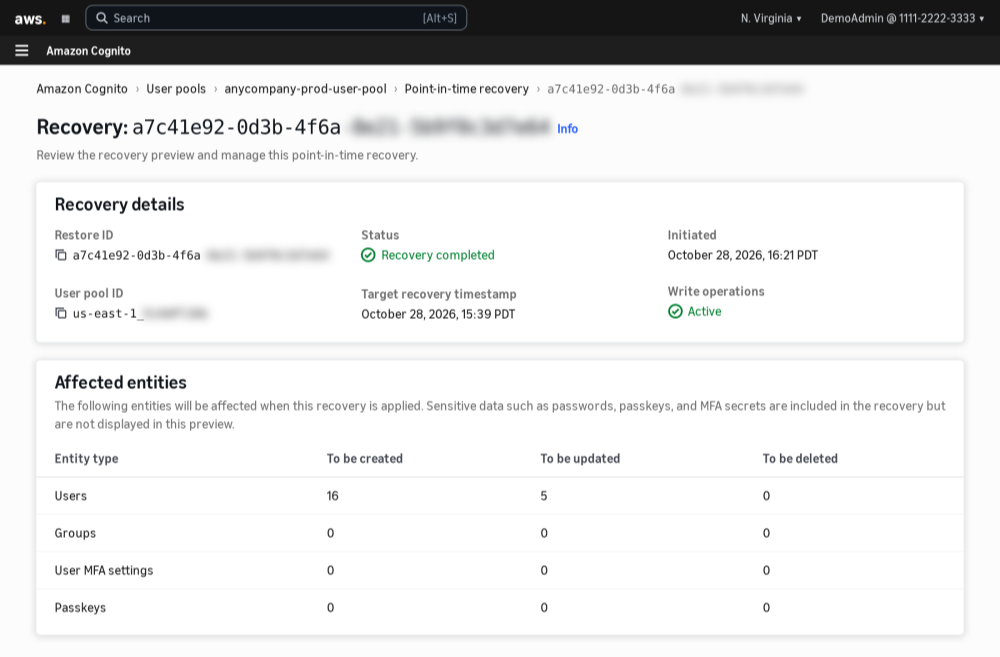
StartPointInTimeRecovery, and Amazon Cognito restores the pool to its state at the target time. If it doesn’t look right, you cancel it withCancelPointInTimeRecovery; no changes are applied, and write operations resume.
Prerequisites
To follow along with this post, you need:
- An AWS account with an Amazon Cognito user pool on the Essentials or Plus feature plan. The recovery window is up to 1 day on Essentials and up to 14 days on Plus. The examples use a pool named
anycompany-prod-user-poolin the US East (N. Virginia) AWS Region (us-east-1). - The AWS Command Line Interface (AWS CLI) configured with permissions for the Amazon Cognito user pools PITR operations.
Before you run a recovery, keep these limits in mind:
- You can run one recovery at a time per user pool, and one successful recovery per 24 hours per pool.
- The target time must be at least 15 minutes in the past and no earlier than the pool’s creation time.
- Recovery is initiated from the pool’s primary Region and can’t start while a multi-Region replication (MRR) operation, such as replica creation or deletion, is in progress on the pool.
Recovering a user pool after an unintentional change
AnyCompany runs its user sign-in on an Amazon Cognito user pool, anycompany-prod-user-pool.
At 15:45 PDT, an operator runs a bulk change that’s supposed to set an attribute on a subset of users. A defect in the script instead deletes and modifies users. By 15:54 PDT, support receives cases of failed sign-ins and the operator halts the script. The team needs the pool as it was at 15:39 PDT. They decide to use PITR and preview the recovery before approving it.
Step 1: Start the recovery
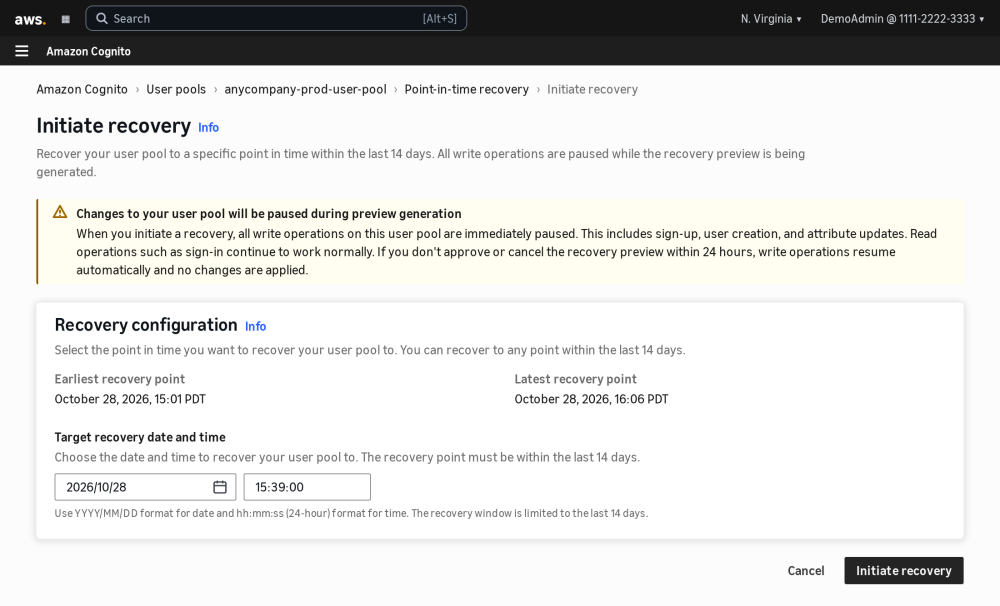
The team initiates a recovery with a target time of 15:39 PDT by running the command in the preceding example. Figure 1 shows the same step in the console, where the team enters the target time and starts the recovery. The response includes a RestoreId that identifies this recovery throughout the workflow, along with a RestoreStatus and the RestoreTimestamp that you targeted.