Key Takeaways
- A minor upgrade, such as 15.13 to 15.19, only replaces the binaries. The data directory stays as it is, so there is no pg_upgrade, dump and restore, or new cluster.
- The upgrade command takes seconds. The real risk is not having a tested plan for when the server doesn’t come back as expected.
- Before upgrading, read every release note in between, take and verify a backup, save the RPMs you are running, check for version locks and record a baseline.
- Rehearse the upgrade and the rollback on a production-like environment, then on test, then on production. Upgrade standbys first and the primary last.
- Verify with both
version()andrpm -q. Roll back in order: reinstall the saved packages, undo the dnf transaction, then restore from backup.
In August 2026, the PostgreSQL Global Development Group released updates for all supported versions: 18.6, 17.11, 16.15, 15.19, and 14.24. These releases include security fixes and a large number of bug fixes, so now is a good time to plan your minor upgrade. You can see the full list of fixed CVEs in the official release announcement.
In this post, we’ll walk through a concrete example: upgrading PostgreSQL 15.13 to 15.19 on RHEL 9. If you run a different major version, the steps are the same and only the version numbers change.
The upgrade itself is almost embarrassingly simple, because one dnf update does the job. The real risk isn’t that command. The real risk is not knowing what to do when the server doesn’t come back the way you expected, while the application team watches the clock.
So let’s plan for that moment before it ever arrives.
What a minor upgrade actually changes
All minor releases of the same major version (for example, 15.0 through 15.19) share the same on-disk data format. Going from 15.13 to 15.19 only replaces the binaries, and the data directory stays exactly as it is.
That means no pg_upgrade, no dump and restore, and no new cluster. You stop the server, swap the binaries, and start it again.
This is why minor upgrades are low risk. It is also why people get casual about them, and casual is usually where trouble begins.
Moving to a new major version instead? That needs a different approach. See our zero-downtime PostgreSQL upgrade service.
Why you shouldn’t skip them
Minor releases are meant for bug fixes and security fixes. New features wait for the next major version. The PostgreSQL community recommends always running the latest minor release of your major version. If you are several minor versions behind, you are missing several releases’ worth of fixes, and some of them are security fixes.
Before starting, read the release notes for every version between your current one and the target. They are cumulative, so moving from 15.13 to 15.19 means reading the notes for 15.14 through 15.19. Occasionally a release asks for an extra step after the upgrade, such as reindexing certain indexes. It’s better to learn that during planning than a month after the upgrade.
Rule number one: production is never the first stop
Never run this procedure on production first. Run the whole thing, rollback included, in this order:
- A production-like environment with the same OS version, PostgreSQL packages, and extensions. This is where you find surprises cheaply.
- Your test or staging server, where you confirm the application still behaves after the upgrade.
- Production, only after the first two have passed cleanly.
The rehearsal gives you two things you can’t get any other way. First, you see exactly how your packages behave during the upgrade, including whether the service restarts on its own. Second, you learn how long the work really takes, so your maintenance window is based on measurement instead of optimism.
Once the rehearsals pass, the same steps apply to production.
Before the upgrade: preparation that saves you later
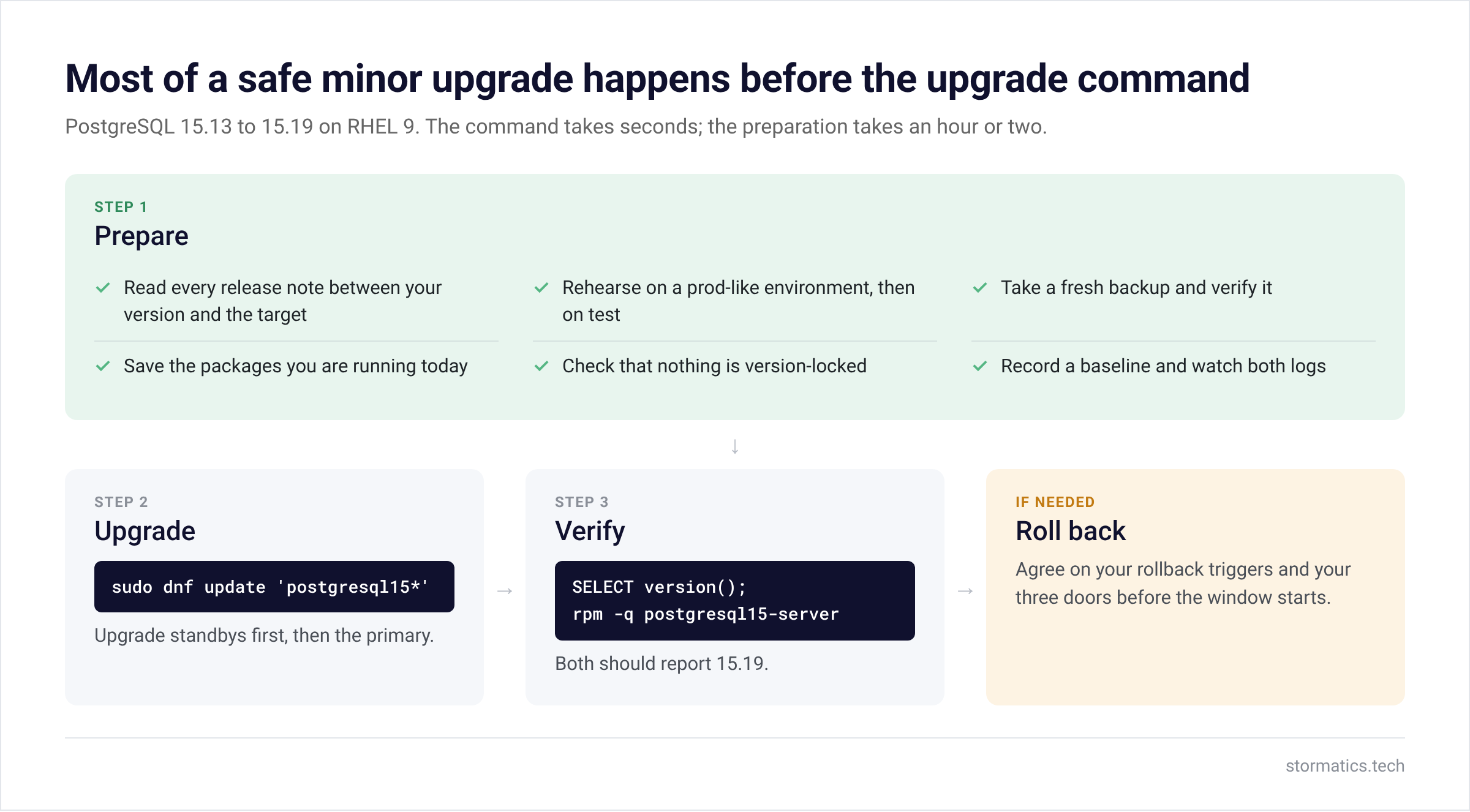
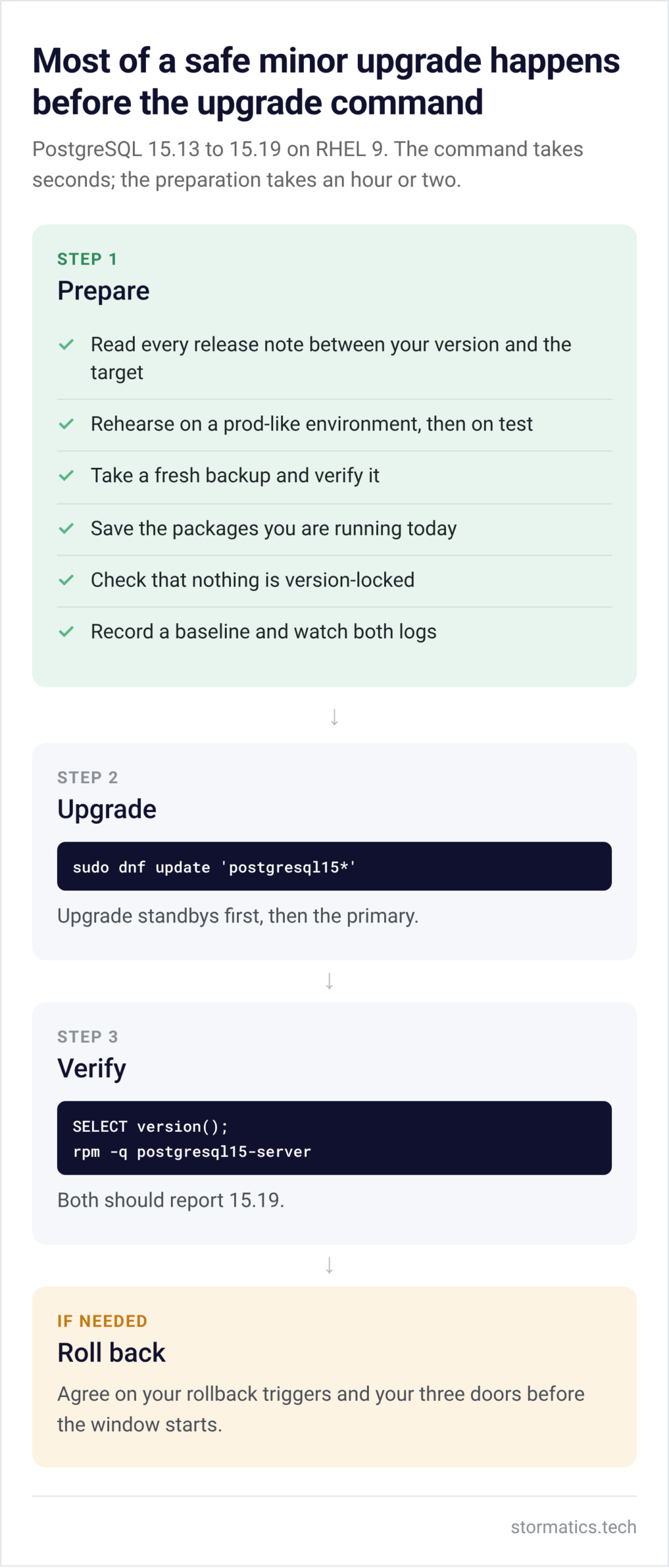
Most of a safe upgrade happens before you run the upgrade command.
1. Take a fresh backup and verify it.
In our setup, backups are handled by pgBackRest, and the rollback path uses it too:
sudo -u postgres pgbackrest --stanza=db check sudo -u postgres pgbackrest --stanza=db --type=full backup sudo -u postgres pgbackrest --stanza=db info
A backup you haven’t verified is just a rumour. The info output should show your new full backup with a fresh timestamp.
Not using pgBackRest? That’s fine. What matters is having a recent, restorable copy of the data before you touch anything. Common alternatives:
- pg_basebackup takes a physical copy of the whole cluster, with the WAL it needs included:
sudo -u postgres pg_basebackup -D /backup/pre_upgrade_15.13 -Ft -z -Xs -PMake sure the target location has enough free space for a full copy of the cluster.
- A storage-level snapshot (LVM, a SAN, or a cloud disk snapshot) is fast to take and fast to revert. It must capture the data directory and WAL together in one consistent snapshot.
- pg_dumpall gives you a logical copy. It works without any extra tooling, but restoring a large database this way can take hours. Treat it as a safety net, not a quick way back.
Whichever method you use, know how to restore from it before the window starts, not during it.
2. Save the packages you are running today.
This is the step most people skip, and it’s the one that makes rollback boring, which is exactly how a rollback should feel. Your repository or internal mirror may not offer the old version when you need it, so keep a local copy.
First, see exactly what is installed:
rpm -qa 'postgresql15*' Then download those same versions. Include contrib and any other packages from that list:
sudo mkdir -p /opt/pg_rollback/15.13 sudo dnf download --destdir=/opt/pg_rollback/15.13 \ 'postgresql15-15.13*' 'postgresql15-libs-15.13*' \ 'postgresql15-server-15.13*' 'postgresql15-contrib-15.13*'
dnf download comes from the dnf-plugins-core package. If the command isn’t found, install that package first.
3. Check that nothing is pinned.
sudo dnf versionlock list If PostgreSQL is version-locked, dnf update will quietly do nothing, and you’ll spend part of your window wondering why. If the command isn’t recognised, the versionlock plugin isn’t installed, and nothing is pinned.
4. Record a baseline.
sudo -u postgres psql -c "SELECT version();" sudo -u postgres psql -c "SHOW data_directory;" sudo systemctl status postgresql-15
You want proof of the starting state, so you have something to compare against afterwards. On a default PGDG install, the data directory is /var/lib/pgsql/15/data.
5. Open two log windows.
sudo journalctl -u postgresql-15 -f sudo tail -f /var/lib/pgsql/15/data/log/postgresql-*.log
The journal shows what systemd is doing, and the PostgreSQL log shows what the database itself is saying. On a typical PGDG install, that log lives under $PGDATA/pg_log. During the upgrade, you’ll want to watch both.
Running replicas? Upgrade the standbys first and the primary last. With streaming replication, the order matters.
The upgrade itself
With the preparation done, the upgrade really is the easy part:
sudo dnf check-update 'postgresql15*' sudo dnf update 'postgresql15*'
Keep the quotes around the package pattern. Without them, the shell may expand the pattern against files in your current directory before dnf ever sees it.
The dnf output should show the 15.19 packages being installed. With PGDG packages, the running service is normally restarted as part of the update. In your log window, you’ll see a fast shutdown request followed almost immediately by the server starting again, and your rehearsal should already have shown you this.
That restart briefly drops connections. This is why even a “minor” upgrade still needs an agreed maintenance window.
If the service doesn’t come back on its own, check it and start it:
sudo systemctl status postgresql-15 sudo systemctl start postgresql-15
Verify, don’t assume
A successful dnf run tells you the packages on disk changed. It doesn’t tell you the running server changed, so check both:
sudo -u postgres psql -c "SELECT version();" rpm -q postgresql15-server
Both should report 15.19.
If the RPM says 15.19 but version() still says 15.13, don’t panic and don’t roll back yet. This almost always means the old server process is still running in memory. Restart the service and check again.
Then compare the rest against your baseline:
sudo -u postgres psql -c "SHOW data_directory;" sudo systemctl status postgresql-15
The data directory should be unchanged, and the service should be active. Finally, ask the application team for a quick smoke test, and scan the PostgreSQL log for new errors.
If everything is green, you’re done. If it isn’t, that’s what the next section is for.
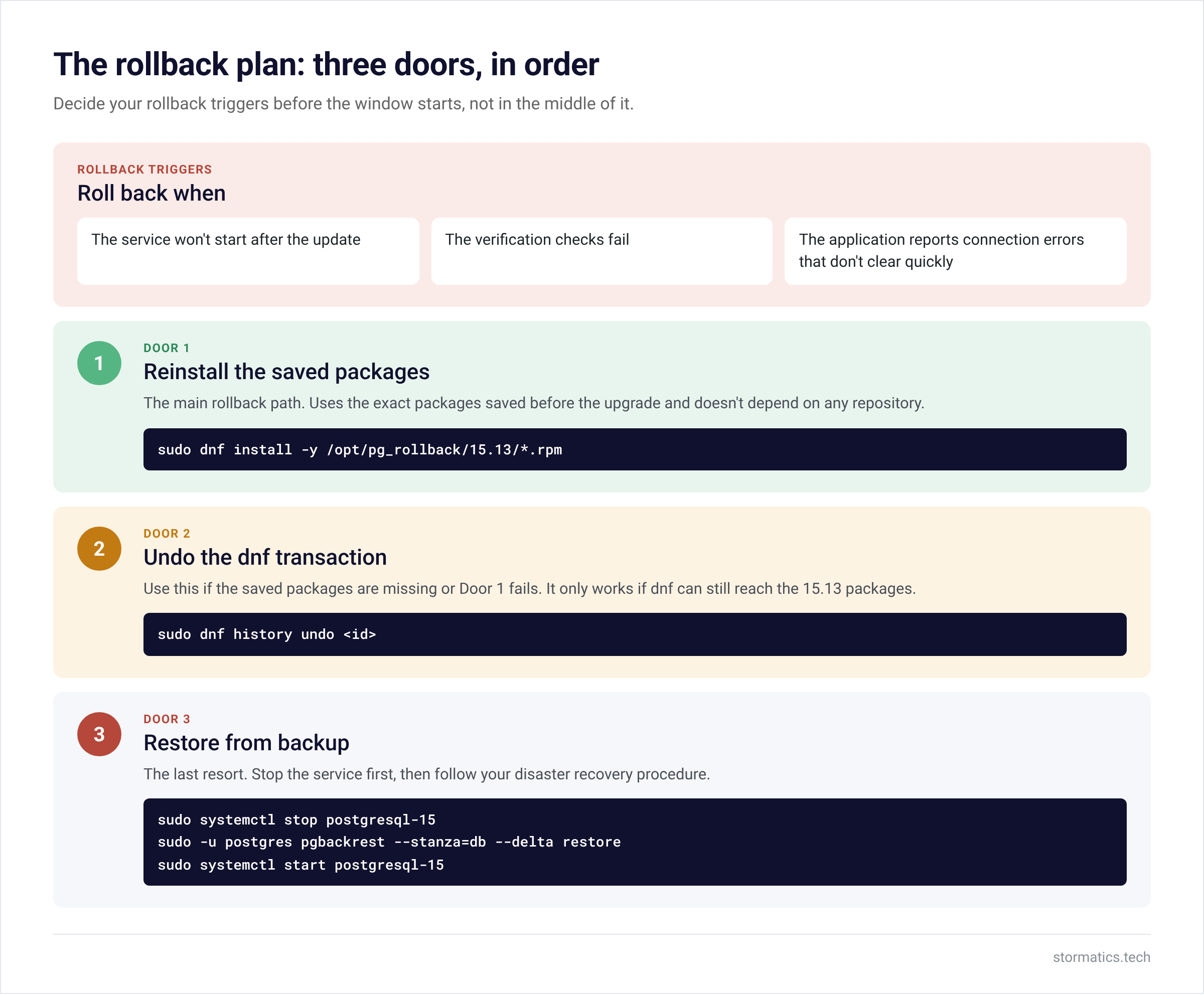
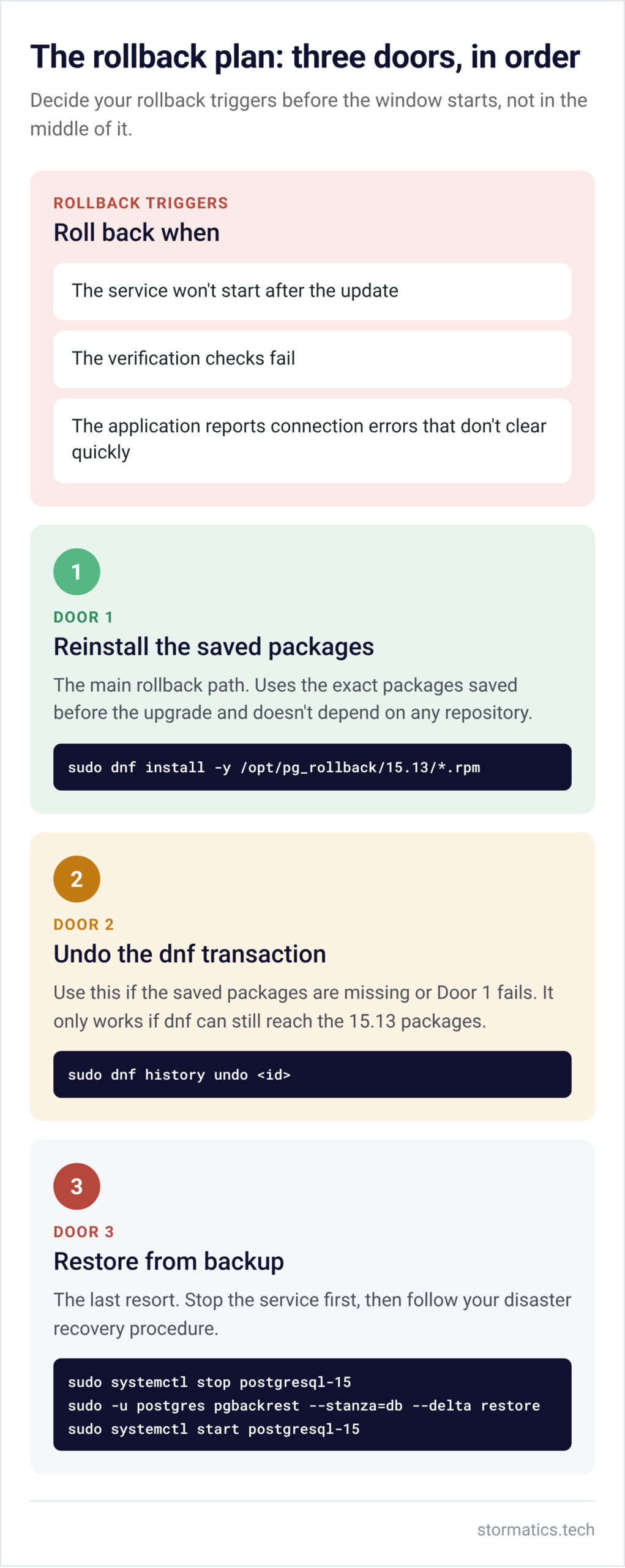
The rollback plan: three doors, in order
Decide your rollback triggers before the window starts, not in the middle of it. Sensible triggers are:
- the service won’t start after the update,
- the verification checks fail,
- the application reports connection errors that don’t clear quickly.
Door 1: reinstall from your saved packages.
This is your main rollback path. It uses the exact packages saved in step 2 and does not depend on any repository. Because these packages are older than the installed ones, dnf install performs a downgrade:
sudo dnf install -y /opt/pg_rollback/15.13/*.rpm sudo systemctl status postgresql-15 # start it only if it isn't running
Then run the verification checks again, this time expecting 15.13. If version() still shows 15.19, restart the service and check once more.
Because 15.13 and 15.19 share the same on-disk format, putting the older binaries back over the unchanged data directory is normally safe. Still, confirm in the release notes that nothing in between says otherwise, and practise this exact step during your rehearsal.
Skipped step 2? dnf history undo <id> can reverse the update transaction. It only works if the old packages are still in the dnf cache or an enabled repository, so it should not be plan A.
Door 2: undo the dnf transaction.
sudo dnf history list # find the postgresql15 update sudo dnf history info <id> # confirm it's the right transaction sudo dnf history undo <id>
This is the quickest option. It only works if dnf can still reach the 15.13 packages, either from its cache or from an enabled repository.
Door 3: restore from backup.
This is the last resort. A minor upgrade doesn’t touch your data files, so if you end up here, you are dealing with a separate problem that happened to appear during your window.
With pgBackRest, stop the service and restore over the existing data directory:
sudo systemctl stop postgresql-15 sudo -u postgres pgbackrest --stanza=db --delta restore sudo systemctl start postgresql-15
If you used another method, restore from that instead. Unpack the pg_basebackup copy into an empty data directory, revert the storage snapshot, or load the pg_dumpall file into a freshly initialised cluster. Whichever route you take, follow your normal disaster recovery procedure and use the backup you verified at the start.
The whole thing on a sticky note
- Read every release note between your version and the target.
- Rehearse the upgrade and the rollback on a production-like environment, then on test, and only then on production.
- Take a backup and verify it, with pgBackRest or whatever tool you use.
- Save the RPMs you are running today.
- Check for version locks, record a baseline, and open both logs.
- Upgrade standbys first, then the primary.
- Verify with both
version()andrpm -q. - Know your rollback triggers and your three doors before you begin.
The command takes seconds, and the preparation takes an hour or two. That time is what keeps your maintenance window quiet, and on patch night, quiet is the best review you can get.
Want a second pair of hands on patch night? Our PostgreSQL DBA as a Service team handles PostgreSQL upgrades and hot-fixes, with upgrade planning and tested rollback paths built in.
The post PostgreSQL Minor Version Upgrade on RHEL 9: A Step-by-Step Guide with Rollback appeared first on Stormatics.


