You want to set up a Python development environment and start coding. But before you’ve written your first script, you’ve come across discussions about editors, shells, virtual environments, and half a dozen tools for installing packages. How much of this do you need to get started?
An effective setup gives you a place to write code, a Python interpreter to run it, and a way to keep each project’s packages separate. For a new project, VS Code and uv are a practical starting point. You can use the terminal that comes with your operating system and add other tools as you discover what helps you work.
In this guide, you’ll find resources to help you:
- Choose an editor and connect it to Python
- Use your terminal to run commands
- Manage Python and project dependencies with uv
- Explore code interactively and get feedback on your work
Each section gives you enough context to make a choice, then points you toward tutorials and video courses where you can practice. You don’t need to install everything mentioned here. If you already have a setup that works for you, then use this guide to fill in the parts that still feel unfamiliar.
Free Bonus: Click here to download your free Python dev environment cheat sheet (PDF) with the uv, venv, terminal, editor, Ruff, and Git commands you’ll reach for when setting up a Python project.
Take the Quiz: Test your knowledge with our interactive “An Effective Python Development Environment” quiz. You’ll receive a score upon completion to help you track your learning progress:
Interactive Quiz
An Effective Python Development EnvironmentCheck your Python setup basics, from editors and terminals to uv projects, virtual environments, notebooks, and feedback tools like Ruff.
Python for Beginners Live Course: Once your setup is ready, want help putting it to work? In Real Python’s Python for Beginners live course, you write real programs with an instructor in the editor and terminal you just set up, with live help whenever you get stuck. Join the waitlist to hear about the next dates.
Choose Your Python Development Environment
Your development environment should help you work on the project in front of you. A few tools are enough to start, and you can keep using them as your projects grow.
For a new Python project on your own computer, you can start with these choices:
| Part of Your Setup | Starting Choice | What It Helps You Do |
|---|---|---|
| Code editor | VS Code with its Python extension | Write, run, and debug Python code |
| Terminal and shell | Your operating system’s existing tools | Navigate folders and run commands |
| Python and packages | uv | Manage Python versions and each project’s dependencies |
| Project folder | One folder per project | Keep your code and configuration together |
These tools work together. You open a project folder in your editor, use uv to manage its Python environment, and run your code with that environment’s interpreter. You’ll learn what each part does in the sections below.
If you’re following a tutorial or joining an existing project, then start with its setup instructions. A project that uses Poetry or venv doesn’t need a different package manager before you can contribute. Matching the project’s workflow gives you fewer differences to troubleshoot while you’re learning.
Choose an Editor and Connect It to Python
Your code editor is where you’ll spend much of your time reading and writing Python. Syntax highlighting helps you recognize the parts of your code, and a debugger lets you pause a program to inspect what’s happening.
An editor window can be as uncluttered as this example in VS Code:
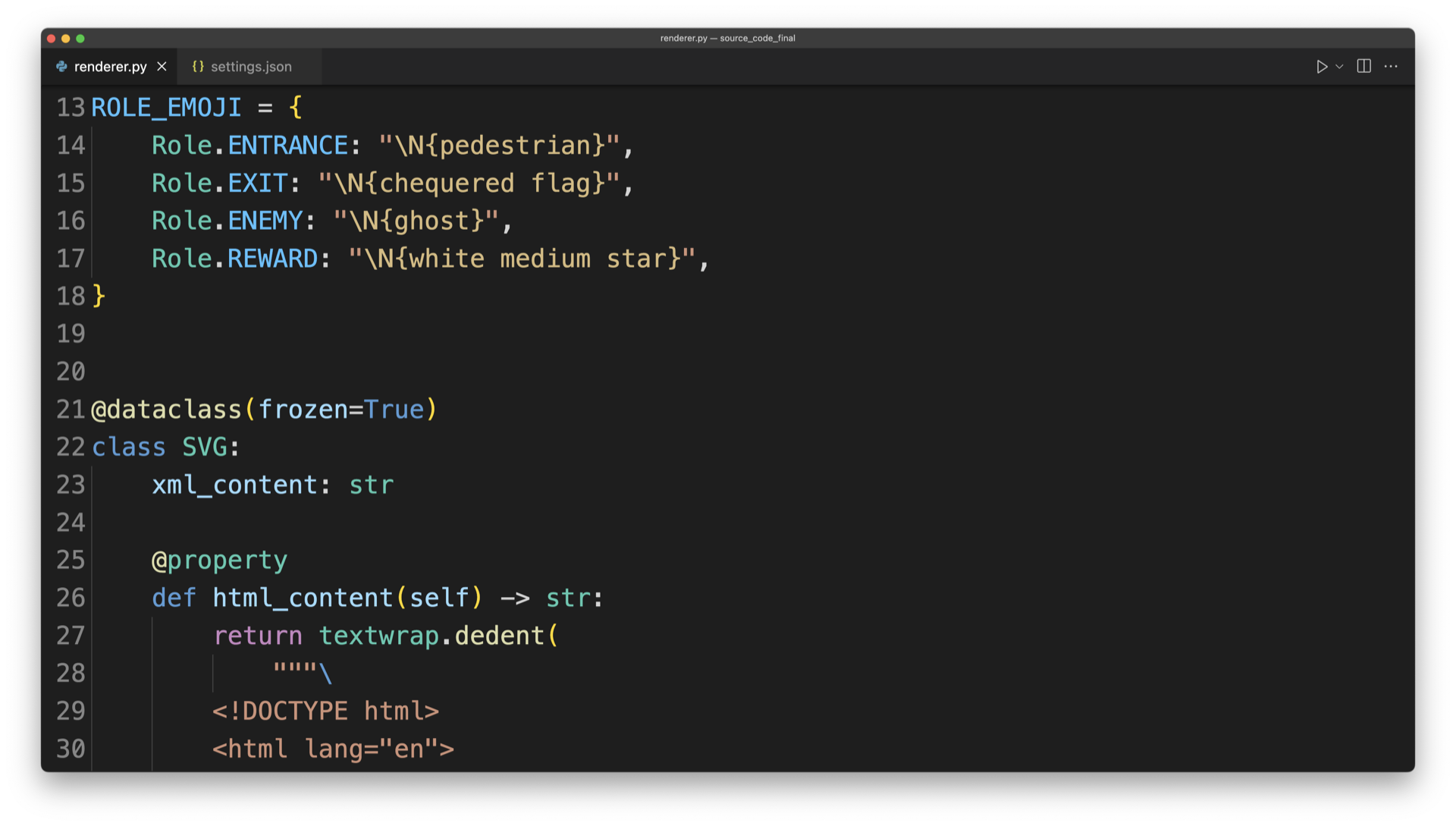
The colors and indentation make the code’s structure easier to see. You don’t need to understand this example’s code to start with a similarly simple workspace.
Read the full article at https://realpython.com/effective-python-environment/ »
[ Improve Your Python With 🐍 Python Tricks 💌 – Get a short & sweet Python Trick delivered to your inbox every couple of days. >> Click here to learn more and see examples ]


