Customers run demanding, high-throughput applications on Amazon DynamoDB because it delivers consistent high throughput at low latency. Many of those applications are enriched by data produced outside DynamoDB, such as machine learning insights, product catalog updates, and attribute backfills. That data arrives as files in Amazon Simple Storage Service (Amazon S3) and needs to land in a table that is actively serving traffic. Until now, loading that data meant building a custom ingestion pipeline, or orchestrating services like AWS Glue or Amazon EMR, and carefully managing table capacity so the bulk writes didn’t compete with your application.
Today, we’re announcing the general availability of bulk put items, a fully managed feature that loads data from Amazon S3 directly into your existing DynamoDB tables with no impact to the read and write performance of your table. It writes at a lower price point than the equivalent per-request writes. You can now balance cost and speed for bulk workloads alongside your application’s regular writes. In this post, we introduce bulk put items, walk through running an import from start to finish, and share best practices for using it in production.
A quick look at Amazon DynamoDB
Amazon DynamoDB is a serverless, fully managed, distributed NoSQL database designed to provide single-digit millisecond performance at any scale. Because DynamoDB is built for low latency and high availability, it’s often used to store user profiles, product catalogs, session data, and application state for workloads that can’t afford to slow down. These same qualities are why bulk loading into a live table has historically required care. The table is serving live traffic, and a bulk import is a large, bursty workload arriving on top of it. Bulk put items is built for this case.
Introducing bulk put items
Bulk put items runs as a managed, asynchronous job. You hand DynamoDB the S3 location of your input files, written as line-delimited DynamoDB JSON or Amazon Ion and optionally compressed with gzip or zstd. The service reads the objects, validates each record, and writes the items in the background. Anything that doesn’t land is recorded in a report delivered to an S3 bucket you choose. A data system team can produce and import the files from one account while landing the data in a serving table owned by another.
Because the writes use dedicated system capacity, they don’t compete with your application’s reads and writes, and they don’t count toward your read and write Amazon CloudWatch metrics, so your existing alarms and auto scaling rules keep working unchanged. There is no capacity to plan before the import and no throttling risk to your application during it. Every bulk operation runs at one of two performance tiers, Standard and Accelerated, which you choose when you start the operation. You pay for the bulk operation based on the tier you select, and we cover choosing between them later in this post.
The following diagram illustrates how a bulk put items operation runs alongside your application traffic.
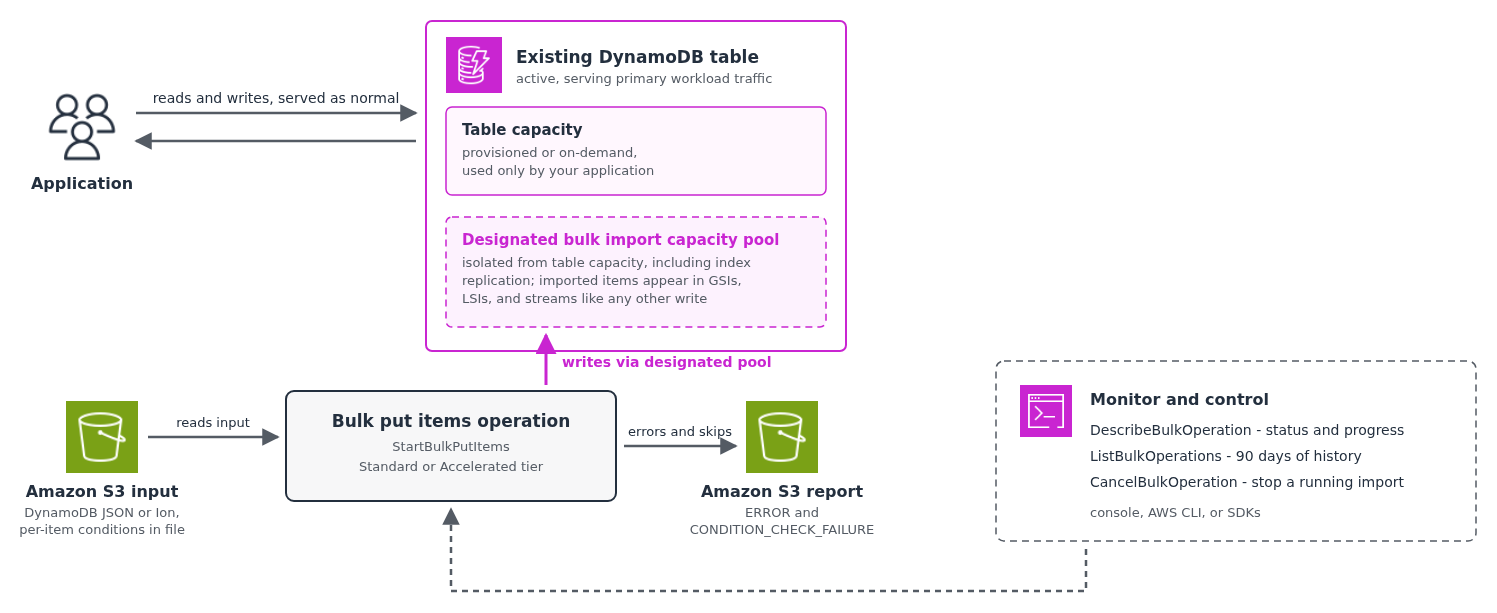
Figure 1: Bulk put items runs on dedicated capacity alongside application reads and writes
Conflict handling is usually where custom pipeline code piles up. With bulk put items, you express it in the data itself. Each record in your input file carries the item and, optionally, its own condition expression, using the same grammar you already use with PutItem. A record whose condition is attribute_not_exists(Artist), where Artist is the table’s partition key, is an insert-only write that doesn’t touch existing data. A record that compares a version attribute is written only when the incoming copy is newer than the one already in the table. That way, an export file can’t overwrite items your application has updated since the export was taken. Because the condition travels with the record, a single file can mix unconditional writes, insert-only writes, and version-guarded writes. If all items need to enforce the same condition then this condition must be carried on every item in the input files.
The following is an example input file in line-delimited DynamoDB JSON. The first record is a plain item with no condition, and the other two carry their own conditions:
An item skipped by its condition isn’t treated as a failure. It counts toward the processed total, the operation still completes, and the skip is recorded in the report.
Choosing a performance tier
Standard, the more cost-effective tier, is the right choice for most bulk loads. It’s designed for low-priority work with flexible timing, such as periodic data enrichment, background population of existing tables, and periodic backfills. The throughput of a Standard operation depends on the number of items you’re writing, the size of those items, and the number of global secondary indexes each write propagates to, along with the capacity available in the system.
Accelerated targets higher throughput than Standard, which helps large operations finish faster. Use it when completion time matters, such as migrations, recovery scenarios with a recovery time objective, and recurring bulk loads with a fixed window. As with regular writes, a table with higher warm throughput reaches higher import throughput immediately. Initial bulk put items operations may outpace table scaling. As DynamoDB scales the table, successive operations may be required to reach optimal throughput.
The following table shows estimated completion times for representative bulk loads using the Accelerated tier in AWS Regions where it’s available. These figures assume a well scaled table, writes uniformly distributed across a high-cardinality partition key space, no replication to global secondary indexes, and input split across multiple similarly sized S3 objects. They are illustrative starting points, and your results will vary based on your table and data shape.
| Number of 1 KB items written | Estimated completion time |
| 10 million | Less than 10 minutes |
| 100 million | Less than 1 hour |
| 1 billion | 2-4 hours |
Choose Standard unless the operation has a deadline, and choose Accelerated when it does.
Getting started with bulk put items
You can start an operation from the AWS Management Console, the AWS Command Line Interface (AWS CLI), or the AWS SDKs.
Start the operation by using the AWS CLI:
The operation runs with the caller’s permissions. The identity starting the import needs the account-scoped dynamodb:StartBulkOperation action, the table-scoped dynamodb:BulkPutItems action, read access to the input bucket, write access to the report bucket, and access to the AWS Key Management Service (AWS KMS) keys involved. The call returns immediately with a bulk operation ARN, and every request carries a client token, so a retried start is idempotent and doesn’t launch a duplicate import.
The operation spends its first minutes provisioning before counters move. This is a fixed startup cost, so expect describe-bulk-operation to show zero items processed early in a run. For delivering a handful of items in seconds, PutItem and BatchWriteItem remain the right tools. As the import progresses, the operation description carries the processed and failed item counts and the processed bytes against total input bytes. You can track how far a large import has advanced. They measure compressed bytes, matching the object sizes you see in your own bucket, and they refresh periodically rather than continuously, so expect the numbers to advance in steps. The total appears after input validation completes shortly after start.
An operation ends in one of four states:
COMPLETEDmeans every record was either written or intentionally skipped by its condition.COMPLETED_WITH_ERRORSmeans the import finished but some records couldn’t be written, most commonly malformed source data. Those records are captured in your report without halting the rest of the import.FAILEDmeans something systemic stopped the operation, and the failure code and message on the description tell you what.CANCELLEDmeans you stopped the operation with cancel-bulk-operation, and items written before the cancel stay in the table.
list-bulk-operations keeps 90 days of history, and if you observe unintended effects mid-run you can stop a running operation with cancel-bulk-operation. Canceling doesn’t roll back items that were already written, so a canceled import leaves the table partially updated. Every bulk operation API call is logged in AWS CloudTrail for auditing.
Reconciling your bulk operation with the report
When the operation finishes, the report in your output bucket lists the records that were not written and why. You choose what lands there with the operation’s output types.
ERRORrecords capture items that couldn’t be written.CONDITION_CHECK_FAILURErecords capture items skipped by their condition, and you can request either or both.
Each report record pinpoints the source S3 object, the position of the record within it, and the reason the write didn’t happen. For condition check failures, it also shows both the item you attempted to write and the item that was already in the table.
The following is a report record for the insert-only write from the earlier example, skipped because the item already existed:
The record shows the incoming item and the existing item together, so you can see why the write didn’t happen without querying the table or re-reading your input file. Treat COMPLETED_WITH_ERRORS as part of your normal workflow, correct the error records, and re-import only those. Because failed records identify their exact source position, the retry file is small and precise. Because your conditions travel with the data, re-importing is also safe even against a table that kept taking application writes the whole time.
Common use cases
The pattern we heard most often from customers is the machine learning insight refresh. A personalization system generates fresh inference data daily, often hundreds of gigabytes of it, and that data must land in the serving table without disturbing the application reading from it.
Before bulk put items, teams either rebuilt an entire table from the full dataset every day or maintained rate-limited custom writers. Now they import only the changed data directly into the live table, which also means insights can be refreshed more frequently than a daily rebuild allows.
The same shape covers enrichment and backfills, where a business updates millions of SKUs after a rate negotiation or populates an attribute required by a new feature from archived data. It also covers migrations, where the version-comparison condition keeps stale exported items from overwriting newer application writes.
Imported items are treated as ordinary writes, meaning the rest of your architecture behaves normally around them. Tables with global secondary indexes and local secondary indexes are updated automatically, with no impact to the propagation latency of your application’s own writes. Index replication for imported items also runs on isolated capacity, so a heavily indexed table changes how long the import takes without affecting your application’s performance.
Items flowing through Amazon DynamoDB Streams or Amazon Kinesis Data Streams appear in your stream output as if they were application writes. Downstream consumers, including zero-ETL integrations, receive the imported data automatically. A bulk load does add throughput on top of your normal write rate, which matters for stream consumers. The best practices that follow cover sizing them.
An in-flight transaction on an item takes precedence, and the import won’t modify that item until the transaction completes.
Best practices
Make every import re-runnable: Attach conditions that make a second run of the same file a no-op, such as attribute_not_exists for pure inserts or a version comparison for refreshes. The client token stops a retried start call from launching a duplicate operation. A deliberate re-run, however, is a new operation, and only your conditions stop it from overwriting data your application wrote in the meantime. When an import is re-runnable, recovering from a canceled operation or a corrected error file is a matter of running it again.
Shape the input for parallelism: The service parallelizes across your input objects, so split large datasets into multiple similarly sized S3 objects rather than one giant file. Make sure your keys are high-cardinality and evenly distributed. A skewed file funnels the whole import through a few partitions and takes longer at either performance tier. For concrete object-size targets, see the bulk loading best practices in the Amazon DynamoDB Developer Guide.
Plan for downstream consumers: If the table feeds stream or Kinesis Data Streams consumers, size them for your normal write rate plus the import before you start. When a downstream consumer can’t keep up, set a ceiling on the operation’s write rate with the MaxWriteRequestUnits parameter rather than letting lag accumulate. Set the ceiling with care, because a low value can stretch the operation past its time limit and cause it to fail.
Benchmark accelerated over a few runs: For recurring time-sensitive operations, treat the first run as scale-establishing and set your schedule expectations once completion times stabilize, typically after three to five runs of the same-shape file.
Monitor the operation, not the table metrics: Bulk writes don’t appear in your table’s consumed-capacity metrics, so your table alarms won’t tell you an import went wrong. Watch the operation status and wire your job scheduler to distinguish COMPLETED from COMPLETED_WITH_ERRORS, with the report as the input to the retry path.
Pricing and availability
Bulk put items introduces byte-based billing. You pay per GB written at the tier’s rate, with a 1 KB minimum per item, applied independently to the table and to each index the write propagates to.
In US East (N. Virginia), the Standard tier is $0.10 per GB and the Accelerated tier is $0.20 per GB. A 1.1 KB item is metered as 1.1 KB, where the write request unit model would round the same item up to 2 KB. As an example, importing 100 million 1 KB items is 100 GB, which is $10.00 on Standard or $20.00 on Accelerated. Each global secondary index is metered independently under the same 1 KB minimum, and the report objects are billed at standard Amazon S3 rates.
Items rejected by validation are not billed. Items that fail a condition check are billed, because DynamoDB still reads the existing item and evaluates the condition, and a condition check against an item that doesn’t exist is billed at the 1 KB minimum. For rates in other Regions and for tables using the Standard-Infrequent Access table class, see Amazon DynamoDB pricing.
The two tiers launch with different Region footprints. Standard is available in all commercial Regions and the AWS GovCloud (US) Regions. Accelerated is available in the Regions where the Accelerated tier is supported.
Considerations
Keep in mind the following when planning your first bulk load:
- One operation per table: You can run one bulk put items operation per table at a time, and a bulk operation can’t run while an index is being created on the table (or the reverse). Per account, you can have up to five Standard and five Accelerated operations in flight, with each tier counted separately.
- Size and table state: An operation can cover up to 100 GB of data on the Standard tier and up to 1 TB on the Accelerated tier, and the target table must be active. You can’t import into a table that is restoring.
- Global tables: Importing into global tables isn’t supported at launch, and you can’t add a replica to a table while a bulk operation is in progress.
- Vector indexes: On tables with a vector index, the Standard tier is supported and bytes written to the vector index are metered separately. The Accelerated tier isn’t available for these tables.
- Whole items only: Bulk put items writes complete items. Conditions gate which items are written, but the operation doesn’t update individual attributes. For attribute-level changes, use
UpdateItem. - Small imports: We recommend the Standard tier for smaller imports lesser than 1GB, as Accelerated provides little benefit at that scale.
Conclusion
In this post, we introduced bulk put items, a fully managed way to load data from Amazon S3 into your existing DynamoDB tables without consuming table capacity or impacting your application traffic, with a Standard tier for cost-efficient background loads and an Accelerated tier for imports with a deadline.
If you maintain a custom ingestion pipeline today, a single API call now handles the reading, writing, conflict resolution, and reporting for you. To learn more and run your first bulk operation, refer to the Amazon DynamoDB Developer Guide.


